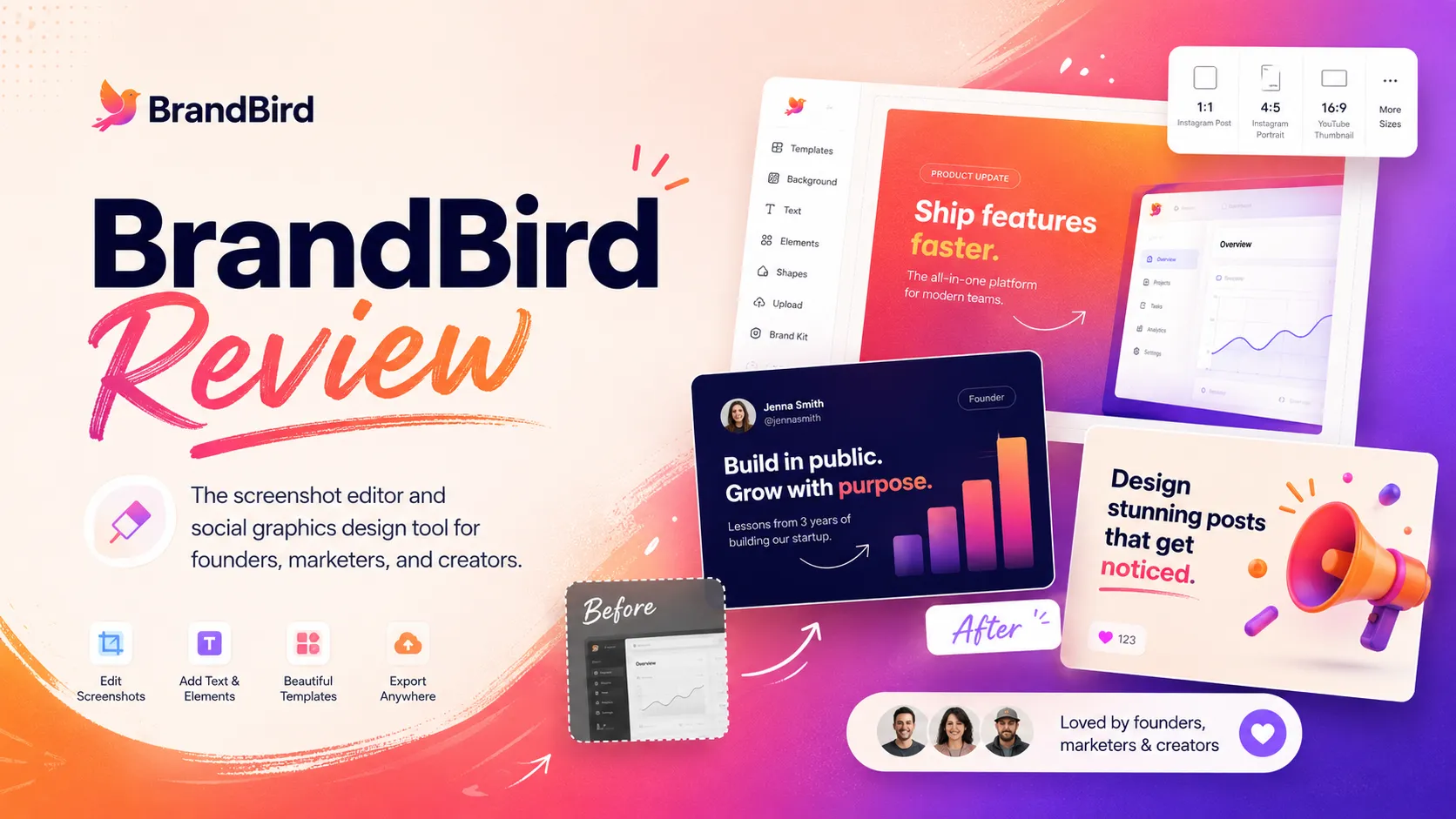
Quick verdict
BrandBird is worth considering if your real problem is not “I need another design app,” but “I keep turning screenshots into launch posts, product visuals, tutorials, and social graphics, and the process is slower than it should be.”
That distinction matters.
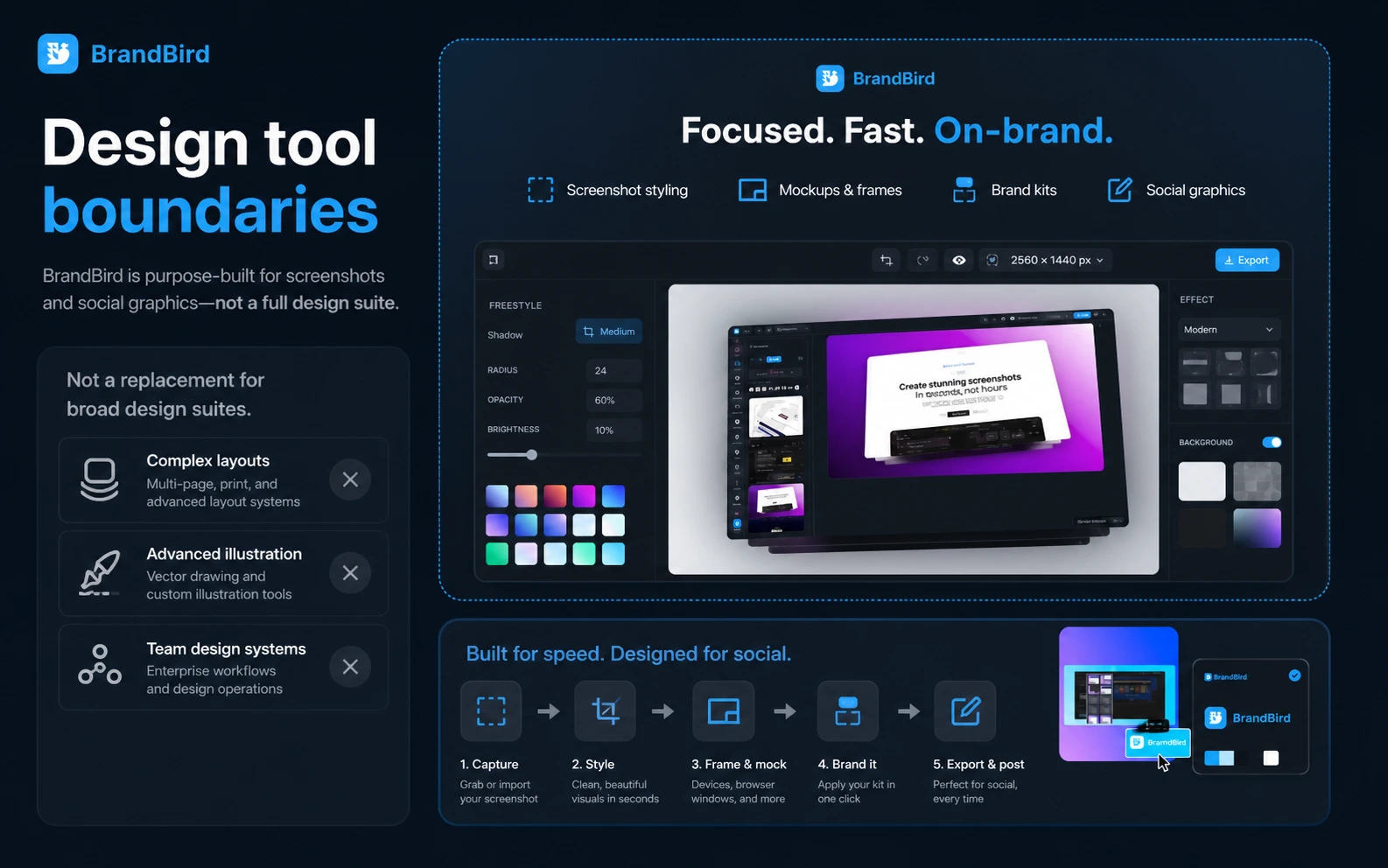
BrandBird is not the tool I would judge as a full Canva, Figma, or Photoshop replacement. It is a focused screenshot beautification and social graphics editor. The value is speed: upload or capture a screenshot, add a polished background, apply frames or 3D transforms, place annotations, keep the result on-brand, and export a cleaner asset for LinkedIn, X, Product Hunt, a blog, a landing page, or a product update.
The strongest reason to consider it is workflow focus. If your screenshots are already the raw material, BrandBird can reduce the small design friction that makes “quick” product visuals take too long. The main caution is that focused tools can feel unnecessary if you only need them once, or too limited if you expect a complete design system.
For my money, the safest path is simple: start with the free editor, create a few real assets from your own screenshots, then decide whether Pro or lifetime access actually removes repeat work. A lower price or lifetime deal can improve the purchase, but it should not be the reason you buy.
Next step: If BrandBird sounds like it fits your screenshot workflow, test the editor first and verify the current Pro or lifetime route before checkout.
Review snapshot
| Review point | Practical take |
|---|---|
| Best for | SaaS founders, creators, marketers, newsletter writers, and product teams that repeatedly publish screenshot-led visuals |
| Not ideal for | Buyers who need full design-suite control, advanced image generation, or one casual screenshot without watermark concerns |
| Main use case | Turning existing screenshots, app screens, website captures, and product visuals into polished social or marketing graphics |
| Starting price | Free path available; public pricing shows Pro at $15/month |
| Lifetime path | Public pricing shows a limited-time lifetime deal at $179 when available |
| Main strength | Fast screenshot mockups, social presets, brand kits, templates, annotations, Chrome capture, and Figma import |
| Main concern | Narrow product scope and a short refund window mean buyers should test before paying |
| Direct comparison angle | Compare with screenshot/mockup tools such as Pika.style, Shots.so, or Picbolt if you want a one-to-one workflow comparison |
| Adjacent routes | Compare with Pixa, ArtSmart AI, OpenArt, or Aitubo only if your need shifts toward broader image editing or AI generation |
| Best next step | Create three real assets in the free editor before choosing Pro or lifetime access |
What is BrandBird?
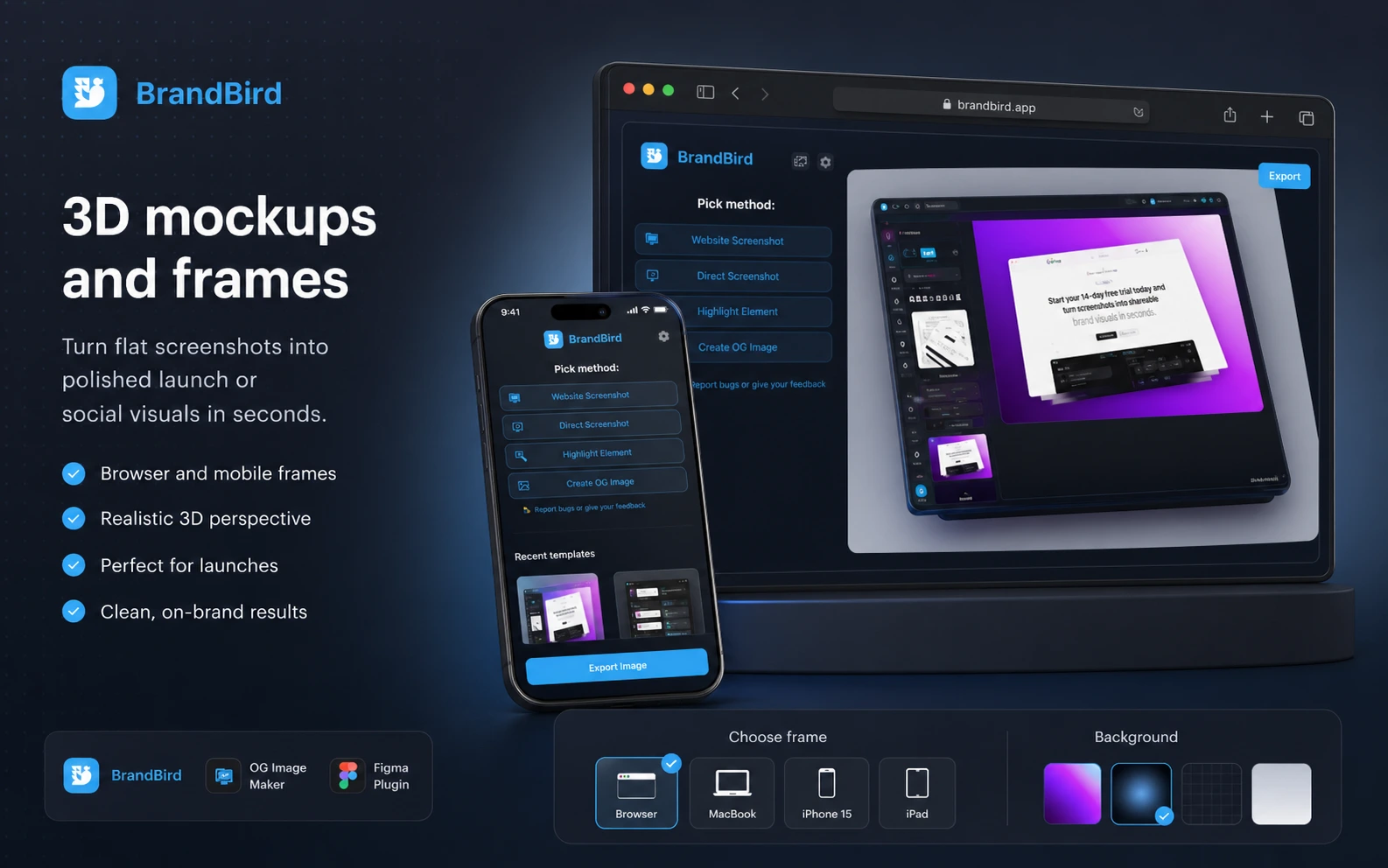
BrandBird is best understood as a browser-based screenshot mockup and social media graphics tool for creators and marketers who need to make existing visuals look publishable faster.
The product’s own positioning is clear: it helps users create screenshot mockups, social media graphics, and marketing visuals with backgrounds, 3D transforms, annotations, frames, brand assets, and export options. In practical buyer language, that means it sits between a plain screenshot and a heavier design workflow.
It is not primarily an AI image generator. It is not a complete design-system builder. It is not the tool I would choose for complex brand strategy, multi-page design systems, or deep illustration work.
The common misunderstanding is expecting BrandBird to replace every visual design tool. That is the wrong test. The better test is narrower: can it turn the screenshot you already have into a better launch image, tutorial graphic, social post, product update, newsletter header, or landing-page visual with less friction than your current process?
Our review approach: we compare public product pages, pricing details, workflow fit, refund language, extension and plugin support, and nearby alternatives. We do not treat a lifetime deal, low monthly price, or coupon path as proof that the tool fits the buyer.
Who should use BrandBird?
SaaS founders publishing launch and feature visuals
BrandBird makes sense for founders who need product screenshots to look better in launch posts, changelog updates, Product Hunt assets, landing pages, and social proof graphics.
The fit is strongest when the product is already visual. If you have clean app screens but they look flat when posted directly, BrandBird can add the layer of polish that makes the screenshot feel more intentional.
Before paying, I would check whether the free editor already handles your most common launch asset: a hero screenshot, a feature image, a comparison visual, or a social post.
Creators and newsletter writers who need branded visuals
A creator who publishes regularly may not want to open Figma or Canva every time a screenshot needs to become a post image. BrandBird’s value is in repeatability: use templates, apply brand colors, frame the screenshot, export for the right channel, move on.
This is useful only if the visual workflow repeats. If you publish one post per month, the free path may be enough. If you publish several screenshot-led posts per week, Pro becomes easier to evaluate.
Product marketers and small teams
Product marketers often need simple visuals faster than the design team can reasonably support every request. A small marketing team can use BrandBird for tutorial screenshots, feature callouts, product update graphics, and platform-specific social assets.
The condition is quality control. BrandBird can speed up production, but the team still needs brand judgment. Templates can keep output consistent; they cannot decide whether the message is clear.
Tutorial and support-content teams
BrandBird’s annotation, highlighting, Chrome capture, and screenshot workflow can help when a team creates help docs or tutorial visuals. The Chrome extension is especially relevant if the work starts from a live browser tab, page element, or UI area.
The buyer check is whether the extension fits the way your team captures screenshots today. If your process already depends on another screen-capture stack, test BrandBird with that existing workflow before assuming it will replace it.
Who should avoid BrandBird?
I would slow down if you only need one attractive screenshot. BrandBird’s focused workflow is more valuable when you use it repeatedly. A single casual asset is not enough reason to rush into Pro or lifetime access.
I would also be careful if you need full creative control. BrandBird can make screenshot visuals look polished, but complex brand systems, advanced layouts, illustration-heavy campaigns, and multi-format design operations still belong closer to tools like Figma, Canva, Adobe tools, or dedicated creative production systems.
Design teams with mature workflows should test before adding another tool. If your team already has Figma templates, brand libraries, export systems, and a designer handling visuals, BrandBird may create overlap rather than speed.
Buyers who need API-based creative automation should also look elsewhere. BrandBird’s public positioning is around browser, Chrome, Figma, templates, and screenshot workflows, not developer-scale image generation or API-driven asset production.
Finally, do not buy only because a lifetime deal looks attractive. Lifetime access can be a good purchase for frequent creators, but it can also turn a focused tool into shelfware if you do not have a repeat screenshot workflow.
How BrandBird fits into a real workflow
A practical BrandBird workflow starts before the editor opens.
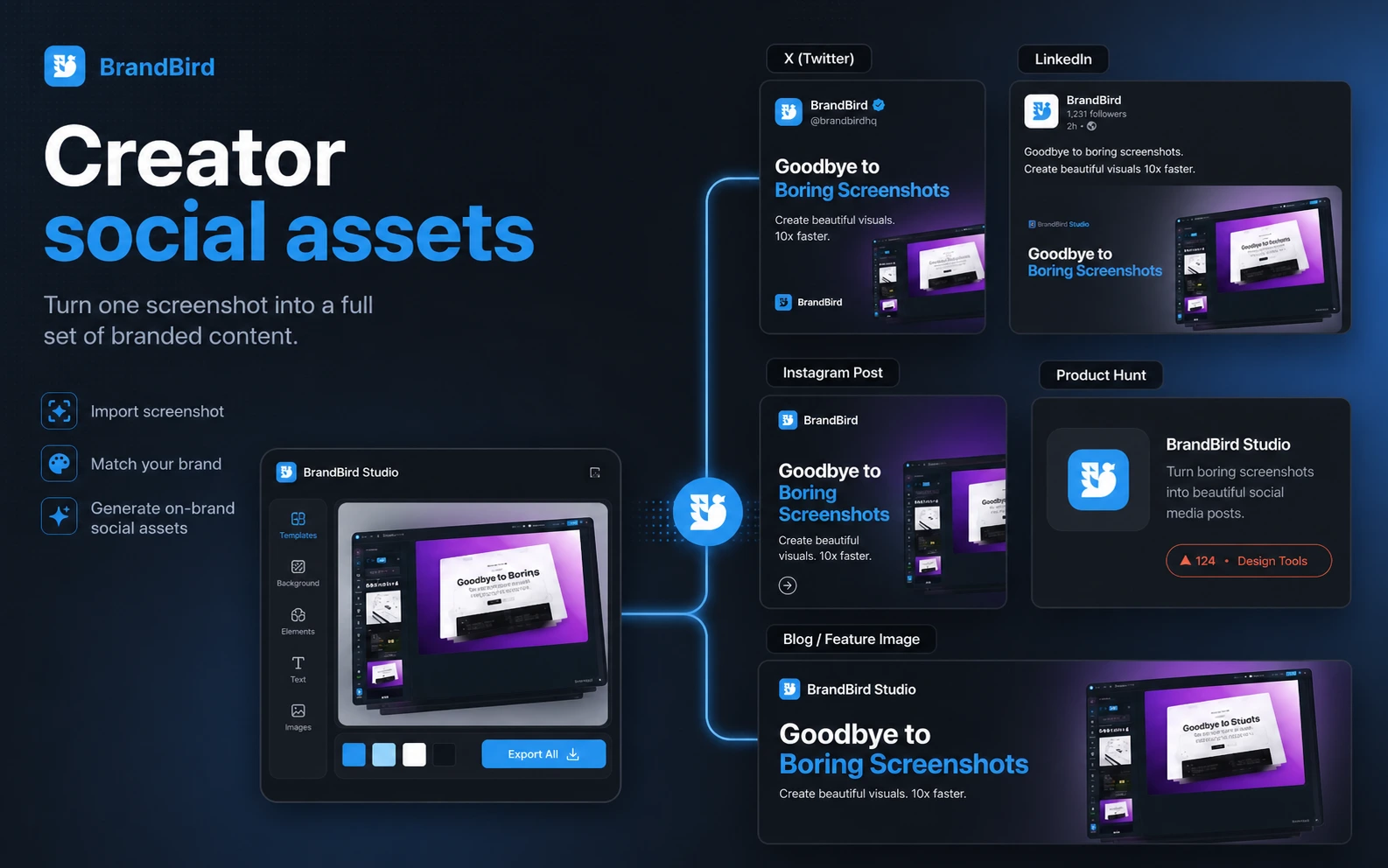
First, you need a screenshot, website capture, app screen, tweet, product UI, or imported design frame that is worth turning into a visual asset. Then you bring it into BrandBird through upload, browser capture, Chrome extension, or Figma import. From there, the job is to style it quickly: background, frame, shadow, 3D transform, annotation, brand kit, size preset, and export.
The output should be judged in context. Does it look good inside a LinkedIn post? Does it work as a Product Hunt visual? Does it explain a tutorial step? Does it fit your newsletter or landing page without more editing?
That is where BrandBird can save time. It does not replace the idea, the messaging, or the editorial judgment. It speeds up the visual packaging around a screenshot.
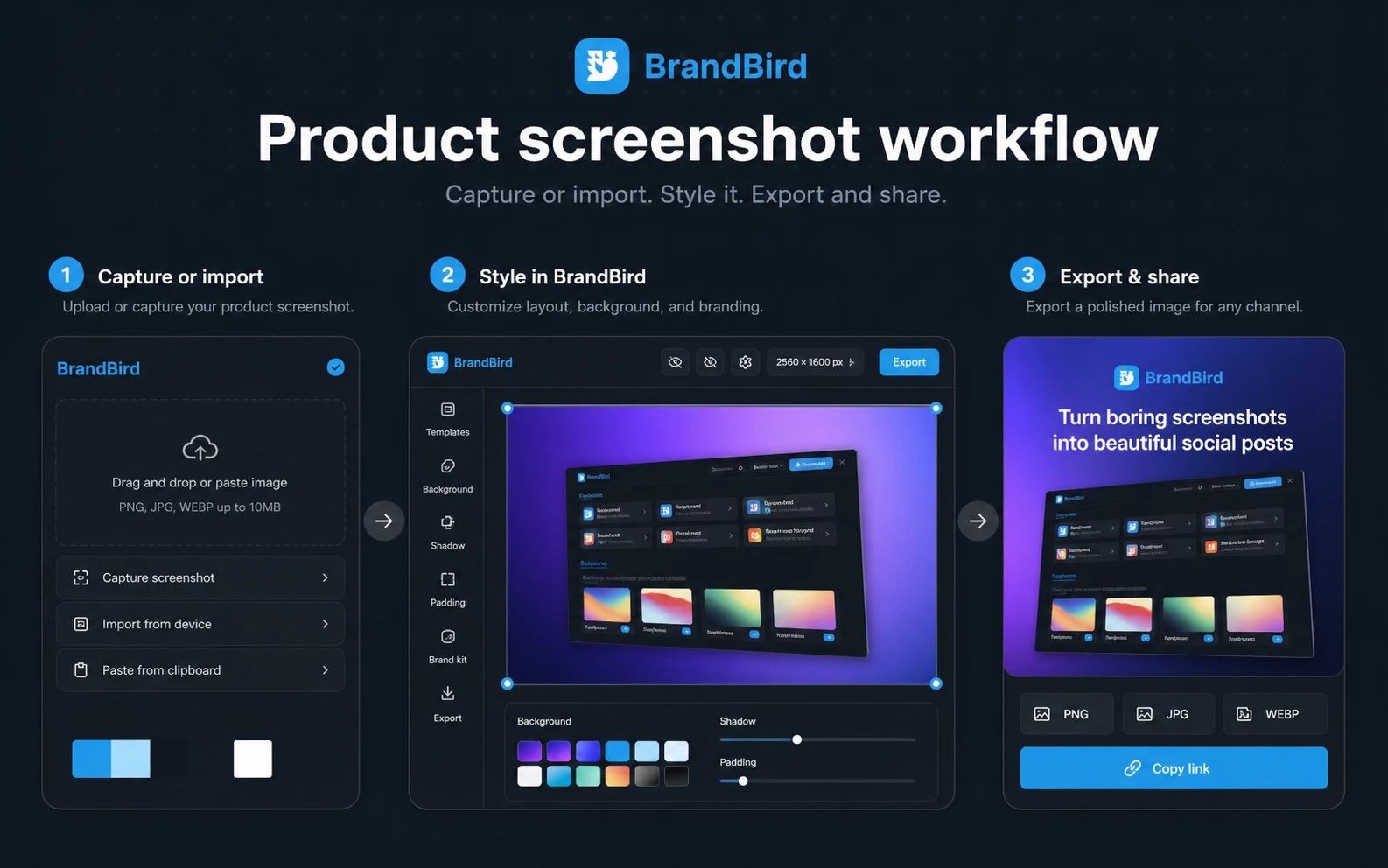
For a solo creator, the workflow might be screenshot → BrandBird template → LinkedIn post. For a SaaS founder, it might be app screen → 3D mockup → Product Hunt asset. For a support team, it might be browser element → highlighted tutorial image → help article.
The easy mistake is comparing BrandBird against every design tool at once. The better question is narrower: does it remove the recurring friction between “I have a screenshot” and “this is ready to publish”?
Workflow check: Before comparing plans, use BrandBird with your own screenshots and see whether it improves the assets you already publish.
Real-world buyer scenarios
Scenario 1: A SaaS founder preparing a Product Hunt launch
A founder preparing a launch needs visuals that make the product feel credible without spending days in design. BrandBird fits when the founder already has screenshots and needs mockups, backgrounds, feature callouts, and social-size exports.
Where it may fail: if the launch needs a full visual identity, investor-style storytelling, custom illustrations, or a coordinated campaign system, BrandBird is only one part of the stack.
Scenario 2: A marketer posting product updates every week
A marketer who publishes weekly feature posts can get real value from templates and brand kits. The same visual structure can be reused for new features, changelog posts, tutorial highlights, and social announcements.
The buyer should verify whether saved templates and brand kits are part of the plan they intend to use. That is where the free path may stop being enough.
Scenario 3: A creator turning screenshots into social content
A creator may use BrandBird to turn tweets, website snippets, app examples, or screenshots into polished posts for LinkedIn, X, Instagram, or newsletters. In this case, speed matters more than deep design freedom.
The risk is sameness. If every image uses the same easy visual formula, the feed can start to feel templated. BrandBird is a production helper, not a taste substitute.
Scenario 4: A product team making tutorial visuals
For tutorial and help content, BrandBird’s highlighting, annotations, and browser capture can be useful. It can help explain what a user should click or notice without turning every support image into a design task.
The team should test export quality, annotation clarity, and workflow handoff before deciding whether it belongs in the official documentation process.
Key features that actually matter
Screenshot mockups and visual polish
This is the core reason to use BrandBird. It takes flat screenshots and helps turn them into better-looking product visuals with backgrounds, device frames, shadows, transforms, and cleaner presentation.
Buyer note: this matters most when screenshots are a repeated public asset. If your product visuals are rare or private, this feature may be nice but not necessary.
Social media size presets
BrandBird supports platform-ready visual formats for channels such as X, LinkedIn, Instagram, Facebook, Product Hunt, and other publishing routes. That reduces the annoying resizing work that happens after a visual already looks good.
Buyer note: test the specific channels you publish on. A preset is only useful if the final exported image looks right in the real feed, not just inside the editor.
Brand kits and saved templates
Brand kits and templates are where BrandBird becomes more than a quick beautifier. If you publish repeatedly, consistency matters. Reusing brand colors, fonts, watermarks, and layout patterns can make a small content operation look more organized.
Buyer note: this is one of the strongest reasons to consider Pro, but only if repeated branded output is actually part of your workflow.
Chrome extension
The Chrome extension can capture the active tab, extract elements, highlight UI components, and import content into BrandBird. For tutorial creators and product marketers, this can reduce the back-and-forth between screenshot tools and design tools.
Buyer note: browser capture is valuable when your assets begin on web pages. If most of your visuals come from uploaded app screenshots, design files, or mobile captures, the extension may matter less.
Figma plugin
The Figma plugin brings BrandBird-style transforms, backgrounds, mockups, and frames into a Figma-adjacent workflow. It is useful when a team already designs in Figma but wants faster marketing-ready exports.
Buyer note: this is not the same as replacing Figma. Think of it as a bridge from design frames to polished marketing images.
Pricing and plan value
BrandBird’s public pricing is easy to understand, but the decision is still not automatic.
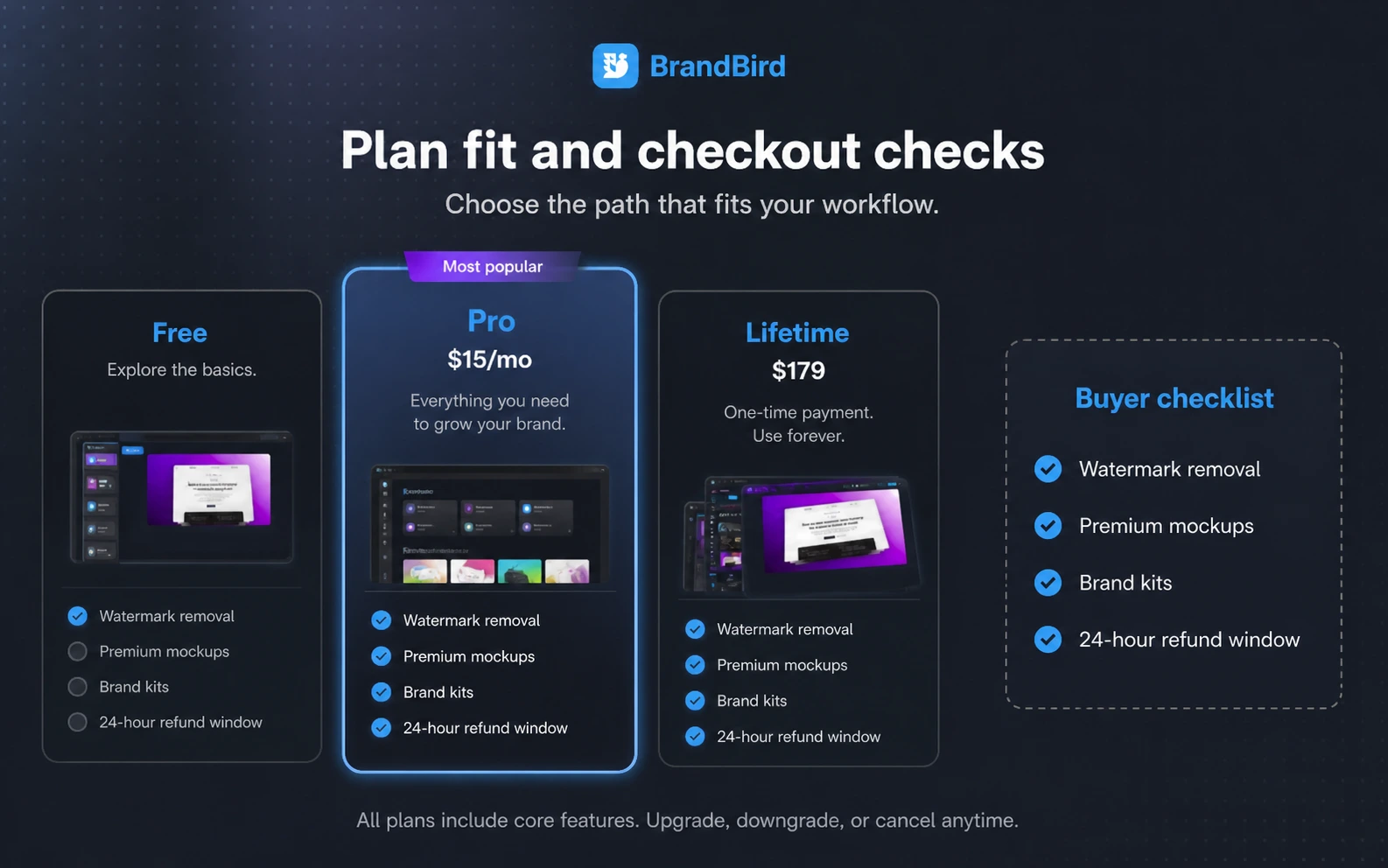
The pricing page shows a Free plan at $0, a Pro plan at $15 per month, and a lifetime deal shown at $179 as a one-time payment when available. The Pro plan includes the Pro path for premium tools, watermark removal, unlimited exports, premium mockups, saved templates, brand kits, and AI tools. The lifetime path is positioned as permanent Pro access with future updates and no recurring fees.
That sounds clean. The buying decision is more personal.
The free path is the right starting point for most buyers. Use it to test real screenshots, not demo assets. Try a SaaS product screen, a blog graphic, a LinkedIn post, a tutorial screenshot, and a landing-page visual. If the output still needs too much work elsewhere, Pro may not fix the mismatch.
Pro makes more sense when the limits start touching public work: watermark removal, premium mockups, templates, brand kits, AI tools, and reusable export flows. If those features save time every week, the monthly price is easier to justify.
The lifetime deal is more tempting but should be treated carefully. A one-time payment can be cheaper over time, but only if BrandBird becomes part of your normal publishing rhythm. If you use it for two weeks and stop, lifetime access is not a deal; it is just a larger upfront purchase.
For the current buyer route, see the BrandBird store guide before treating any plan, discount, or lifetime wording as final.
Pricing check: If BrandBird saves time with your own assets, compare the current Pro plan, lifetime access, and refund wording before paying.
Check BrandBird pricing Check current offers Read store guide
Free plan, trial, coupon, and checkout notes
The free path is valuable because BrandBird is a workflow-fit tool. You do not need to guess whether screenshot mockups help your publishing process. You can test it.
I would use the free path to answer practical questions:
- Can I create a usable asset from my own screenshot in a few minutes?
- Do the templates and backgrounds fit my brand, or do they feel too generic?
- Does the watermark matter for my public channels?
- Do I need saved templates and brand kits to make this repeatable?
- Does the final export look right on the actual platform where I publish?
BrandBird’s public pricing page also mentions discounts only for members on specific occasions, plus a creator/blog/newsletter path that may provide two free months. That means I would not assume a public coupon is always available. Treat the BrandBird coupon page as a checkout check, not the main reason to buy.
The refund language is the bigger caution. A 24-hour refund request window is narrow. That does not make BrandBird bad; it just changes the buying sequence. Test first, pay second.
Checkout order: Confirm workflow fit first, then check the current offer route. A coupon or discount should support the decision, not replace it.
What I would check before buying BrandBird
If I were buying BrandBird for a real publishing workflow, I would check these points before choosing Pro or lifetime access:
- Whether three to five real screenshots can become publishable assets quickly.
- Whether watermark removal matters for the channels where the images will appear.
- Whether premium mockups, templates, brand kits, and AI tools are actually needed.
- Whether the Chrome extension fits the way I capture product screens.
- Whether the Figma plugin helps or simply adds another step.
- Whether monthly Pro or lifetime access is safer for my expected usage.
- Whether the current refund and discount wording still matches the pricing page at checkout.
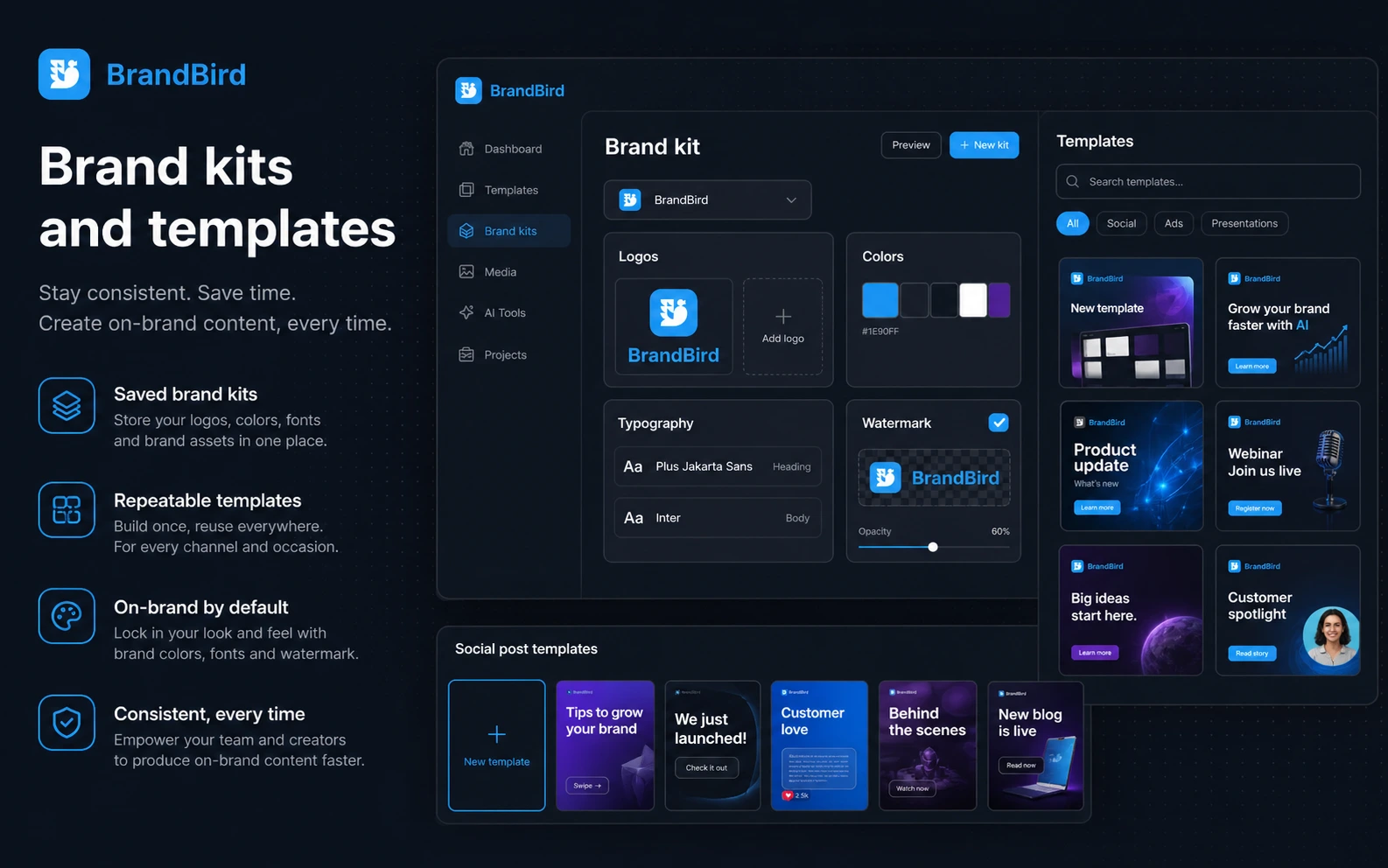
The mistake buyers can make here is treating a polished demo as proof of daily value. Demo images usually look good. The real test is whether your own product screenshots, with your own brand and channels, become easier to publish.
A simple test before paying
Before paying, I would run a small test like this:
- Choose three real screenshots: one product UI, one website view, and one tutorial-style image.
- Create one social post, one launch-style image, and one blog or newsletter visual.
- Export each in the format or size you would actually use.
- Compare the results against your current Canva, Figma, or manual mockup workflow.
- Check whether watermarks, premium mockups, saved templates, or brand kits block your intended output.
- Review the final images on the real channel where they would be published.
- Only then compare monthly Pro with lifetime access.
That test is more useful than reading feature lists. A focused tool like BrandBird either saves time in the work you repeat, or it becomes another nice tool you forget to open.
Pros explained
BrandBird is focused on a real creator pain
Many tools promise broad design freedom. BrandBird solves a narrower problem: making screenshots look good enough to publish quickly. That focus is a strength for SaaS founders, indie hackers, marketers, and creators who live in screenshot-led content.
It stops being enough when the buyer needs more than screenshot presentation. Complex design systems still need broader tools.
The free path lowers the testing risk
A free plan matters because BrandBird’s value is hard to judge from a feature list. You need to see what happens with your own screenshots.
The free path does not prove that Pro is worth it. It proves whether the workflow deserves more attention.
Chrome and Figma workflows make sense
The Chrome extension is useful for browser-first screenshots, page elements, Open Graph images, and tutorial highlights. The Figma plugin is useful for turning design frames into marketing-ready images.
These integrations matter because the screenshot workflow often starts somewhere else. BrandBird is more valuable when it meets the buyer where the asset begins.
The lifetime deal can be compelling for frequent users
If BrandBird becomes a weekly workflow tool, lifetime access can make financial sense. Frequent creators may prefer a one-time payment over another monthly subscription.
The caution is obvious: lifetime access only helps if the product becomes a habit. Test first.
Cons explained
BrandBird is not a full design platform
This is the most important limitation. BrandBird is useful because it is focused. That same focus makes it a poor fit for buyers who expect full design-system control, advanced editing, or broad campaign production.
The way to avoid disappointment is to compare BrandBird with the actual job: screenshot polish, not every visual design task.
Pro features may be necessary for serious use
Free testing is helpful, but public-facing brand work often needs watermark removal, premium mockups, templates, and brand kits. That means the free path may be more of a workflow trial than a long-term plan.
Buyers should decide which Pro features are truly necessary before paying.
The refund window is short
A 24-hour refund request window gives buyers less room to casually explore after purchase. That is why I would not buy Pro or lifetime access until I had already tested the editor with real assets.
If you are unsure, monthly is usually safer than jumping directly into a one-time purchase.
It may overlap with existing design workflows
If your team already has polished Canva templates, Figma frames, brand kits, and a smooth export system, BrandBird may not remove enough friction to justify another tool.
The question is not whether BrandBird is useful. The question is whether it is useful enough to replace part of your current workflow.
Green flags and red flags
Green flags
- You publish screenshot-led content every week.
- Your current screenshot visuals look too flat or take too long to polish.
- You need social-size exports for channels such as LinkedIn, X, Instagram, Product Hunt, blogs, or newsletters.
- You want reusable templates, brand kits, and faster product visuals without asking a designer for every asset.
- You can prove the workflow with the free plan before paying.
Red flags
- You only need one or two screenshots.
- You expect BrandBird to replace Canva, Figma, Photoshop, or a full brand system.
- You need API-based image production or automated creative generation at scale.
- You are buying lifetime access before testing real assets.
- You are focused on a discount before confirming workflow fit.
BrandBird vs alternatives
BrandBird should be compared carefully because not every “design” or “AI image” tool solves the same job.
Pika.style, Shots.so, or Picbolt vs BrandBird
These are closer direct comparison points if your main job is screenshot beautification, mockups, and fast product visuals. I would compare them when the buyer wants a one-to-one decision around screenshot workflows.
BrandBird may still make sense if its Chrome extension, Figma plugin, brand kits, templates, or lifetime route fit your process better.
Pixa vs BrandBird
Pixa is better treated as an adjacent image workflow route, especially if the buyer is thinking about product visuals, ecommerce-style assets, or broader image editing needs.
BrandBird is the cleaner fit when the source material is a product screenshot and the output is a social, launch, tutorial, or marketing graphic.
ArtSmart AI vs BrandBird
ArtSmart AI belongs closer to AI image generation. It is more relevant when the buyer wants to create new visuals rather than polish existing screenshots.
BrandBird is more practical when the screenshot itself is the asset and the buyer needs a faster presentation layer.
OpenArt vs BrandBird
OpenArt is another adjacent creative-generation route. It fits buyers exploring AI art, concept visuals, or broader image generation workflows.
I would not call it a direct BrandBird replacement unless the buyer no longer needs screenshot mockups and instead wants generated creative assets.
Aitubo vs BrandBird
Aitubo is more relevant for broad AI creative generation. BrandBird is narrower and more operational: screenshots in, polished marketing visuals out.
The tradeoff is depth versus focus. A broader creative tool may offer more generation flexibility, while BrandBird can be faster for the specific screenshot-to-asset job.
1of10 vs BrandBird
1of10 is not a direct screenshot editor. It is better treated as an adjacent research or creative-intelligence route if your next question is about content ideas, thumbnails, or what performs in a creator workflow.
Use it as a different decision path, not as a replacement for BrandBird’s screenshot mockup workflow.
Trust, refund, and buyer-risk notes
My confidence is strongest around BrandBird’s product role: screenshot mockups, social media graphics, marketing visuals, brand kits, templates, Chrome capture, Figma import, and platform-ready exports. I am more cautious around live discounts and lifetime-deal timing because promotional paths can change faster than a review page.
The refund language is the first buyer-risk point. A refund request within 24 hours is not the same as a long trial period. It gives buyers a narrow window after payment, so the free plan should do most of the evaluation work before checkout.
Pricing is the second risk. Pro at $15 per month is easy to understand, and lifetime access at $179 can look attractive. But the better question is whether BrandBird becomes a repeated part of your publishing process. Do not buy lifetime access because it feels cheaper in theory; buy it only if the workflow is already proven.
Data and asset handling also deserve normal caution. If you upload product screenshots, customer-facing UI, private dashboards, or unreleased features, use common sense about what you bring into any browser-based editor. For sensitive material, review the current terms and privacy pages before using it in a team workflow.
Finally, remember the category boundary. BrandBird is a screenshot and social graphics workflow tool. It can sit beside Canva, Figma, AI image generators, and design resources, but it should not be judged as if it replaces all of them.
Final verdict
I would consider BrandBird if screenshot-led visuals are already part of your publishing rhythm. SaaS founders, creators, newsletter writers, marketers, and product teams can get real value when BrandBird turns repeated screenshot work into a faster, more consistent asset workflow.
I would skip it if you need a full design suite, advanced creative generation, deep brand-system control, or only one casual screenshot. In those cases, the tool may feel narrow because it is narrow by design.
I would compare it with direct screenshot and mockup tools if your question is “which screenshot editor should I use?” I would compare it with Pixa, ArtSmart AI, OpenArt, or Aitubo only if your question has shifted toward broader image editing or AI creative generation.
The safest next step is to test BrandBird with your own screenshots before paying. If the free workflow produces assets you would actually publish, Pro becomes a reasonable next check. If the workflow still feels optional, a lifetime deal or coupon path will not fix the mismatch.