
Pixa Pricing, Creative Fit & Buyer Path
Pixa, formerly Pixelcut, is best understood as an AI creative workspace for product photos, background removal, image generation, video generation, retouching, batch edits, thumbnails, and branded visual production. It fits creators, ecommerce sellers, small businesses, and teams that need many polished visuals without building a full design stack around heavier software.

Fit → price → checkout
Use these routes after the official-site check: coupon first, review for fit, compare if unsure.
Pixa pricing snapshot
Fast commercial checks before pricing, coupons, or a deeper review.
Pixa product tour
The main tour video is useful because Pixa can look like a simple photo editor at first glance, while the real buyer decision is broader. Watch how the workspace handles editing, generation, and brand-ready visual production, then compare that with the pricing screen to decide whether the free plan, Pro plan, Business plan, or API path matches the work. The second video in the body gives buyers another practical angle before they pay for credits or annual billing.
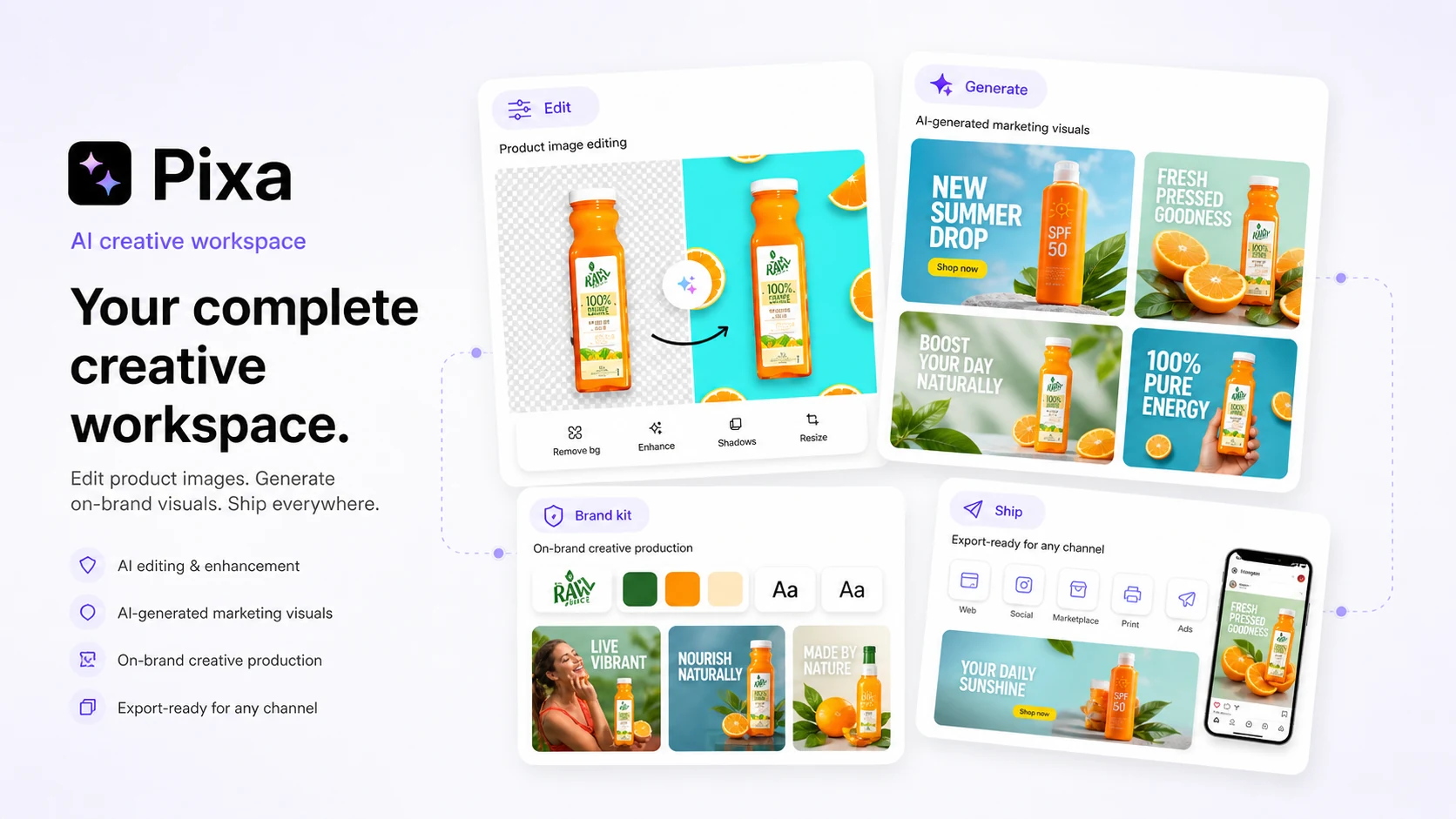
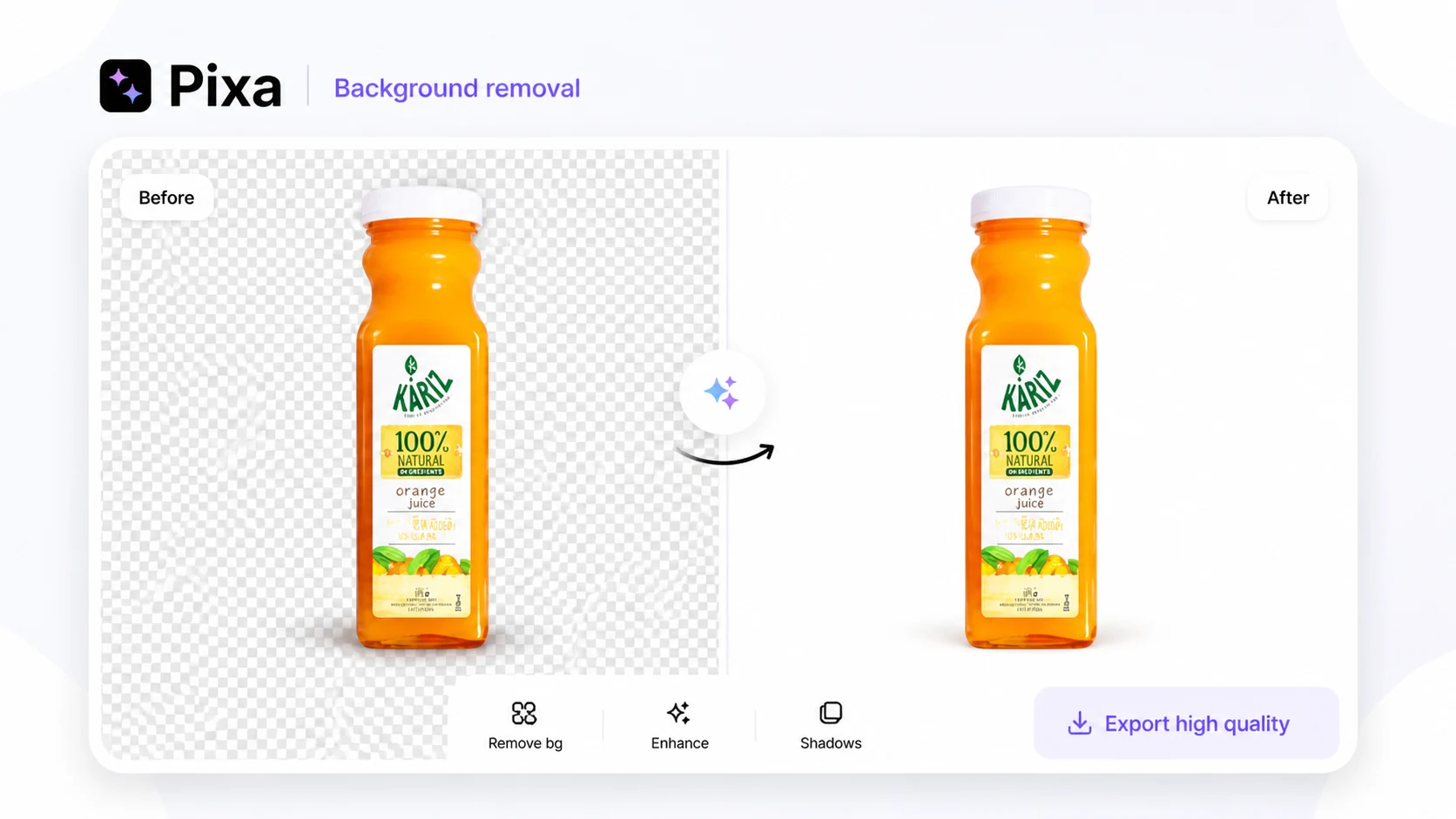
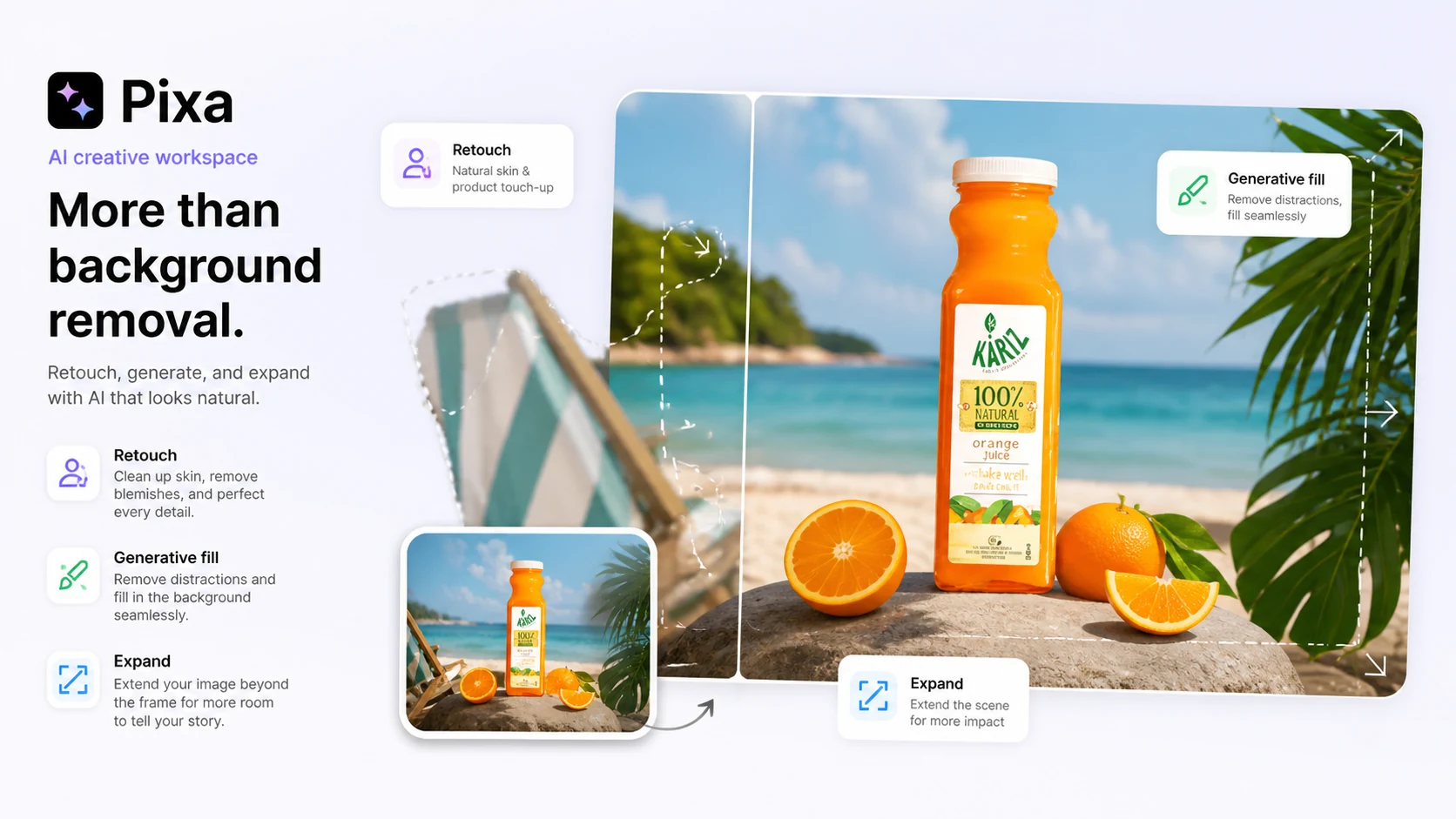
Pixa is a buying decision for people who need visual output repeatedly: product images, ads, thumbnails, background edits, retouching, AI-generated scenes, batch exports, and API-powered image operations. The tool can save real time, but only when the buyer understands the credit model, team limits, mobile-versus-web billing, and whether the visual quality fits the actual sales channel.
What Pixa actually does
Pixa is the rebranded evolution of Pixelcut. It combines AI photo editing, background removal, image upscaling, video background removal, generative fill, uncrop, AI ads, AI image generation, AI video generation, and batch editing. For a buyer, the practical question is not whether Pixa can make a nice demo image. The better question is whether it can handle the repeat visual jobs that usually slow down product launches, social campaigns, and marketplace listings.
- Use it for background removal, upscaling, retouching, AI backgrounds, product images, thumbnails, and batch exports.
- Use the API path only when the buyer needs image operations inside an app, marketplace, or internal workflow.
- Check the output against real product images, not only promotional examples.
Pricing and credits need a closer look
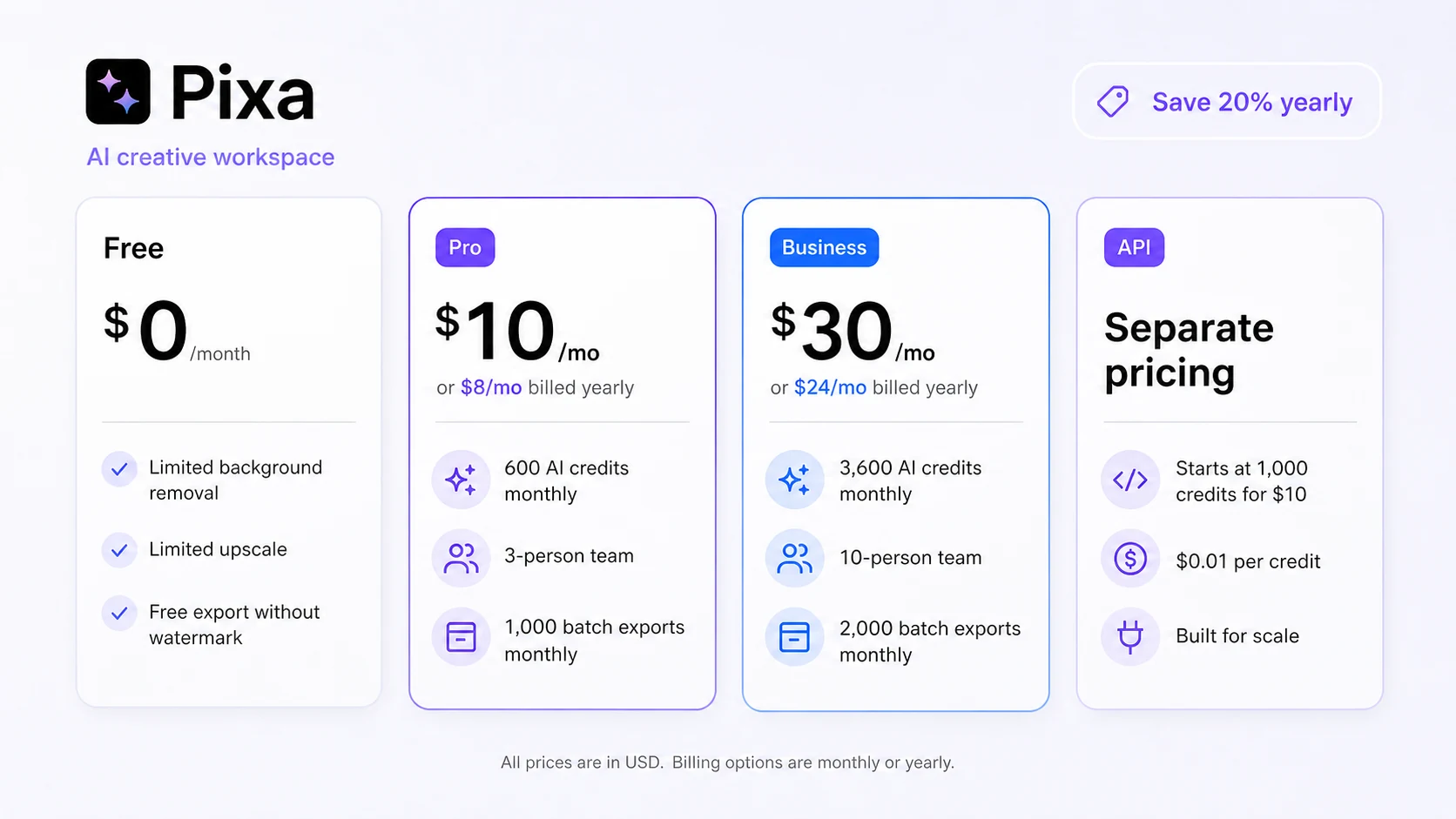
Pixa's pricing looks simple at first: Free, Pro, and Business. The more important detail is that advanced AI work uses credits, and the Business plan expands monthly credits, team size, and batch exports. A buyer should estimate how many images, videos, and batch edits they expect each month before choosing annual billing.
- Free gives a low-risk test path, but it is not proof that a paid workflow will fit.
- Pro is the first serious creative path for individuals or small teams with regular image work.
- Business makes more sense when credits, seats, and batch exports are bottlenecks.
Video walkthrough for visual workflow fit
The embedded video gives buyers a practical second look at Pixa's creative workflow. Watch for how quickly a user can move from a rough input to a usable asset, how much manual correction is still needed, and whether the interface feels simple enough for repeat product or creator work. That decision matters more than the existence of another AI image feature.
Creator and thumbnail use case
Pixa is not limited to ecommerce product images. Its public YouTube thumbnail generator shows a creator workflow where the user describes a thumbnail, generates a design, and downloads a high-resolution PNG. That matters for creators who need faster ideation and campaign visuals, but the buyer should still compare text accuracy, brand consistency, and export quality before treating it as a main design workflow.
- Good fit for creators who need thumbnail ideas, social visuals, ads, and fast design drafts.
- Less ideal when precise manual layout control matters more than quick generation.
- Text rendering should be checked carefully before publishing thumbnails or ads.
Batch editing and team use
Pixa becomes more commercially interesting when the buyer has many assets to process. The homepage highlights batch editing across hundreds of files, and the pricing page separates team limits between Pro and Business. That makes the team decision less about whether the tool works and more about how many people and assets need to move through it each month.
- Pro includes a smaller team path for lightweight shared work.
- Business is better aligned with higher credit needs and larger batch export volume.
- Teams should define naming, export, and review rules before pushing many assets through AI editing.
API path for developers and ecommerce platforms
Pixa's API path is separate from the normal creative-plan decision. The API page describes background removal, image upscaling, generated backgrounds, try-on, inpainting, and outpainting, with credits consumed per successful operation. This is useful for developers, ecommerce platforms, and internal tools, but it needs a usage estimate before purchase.
- Background removal uses fewer credits per operation than several heavier edit types.
- Try-on, inpainting, outpainting, upscaling, and generated backgrounds should be estimated against real monthly volume.
- Developers should review the API docs and terms before building a production workflow around Pixa.
Safest next step before checkout
The safest buyer path is to start with Pixa's free plan, run real product or creator assets through the editor, and compare the result with the live pricing page. If the output is reliable, choose Pro for lighter repeat work or Business for higher credit, team, and batch-export needs. Use the DealBestDaily coupon route only after the plan itself makes sense.
- Test real images first.
- Check credit usage and export quality.
- Verify web versus mobile billing.
- Compare Pro, Business, and API separately.
- Use coupons only as a final checkout check, not the reason to buy.
Use comparison routes when the category fit is still open
Use these comparison routes when the product still looks plausible, but the category fit is not fully settled.
Better fit when the buyer mainly wants AI art and generated marketing images rather than a broader product-photo editor.
Better fit for creators who want a larger AI art community and model-driven image generation workflow.
Better fit when the main job is creative image generation rather than ecommerce cleanup and batch product visuals.
Better fit for ecommerce teams that want product-photo automation and catalog-image optimization with a stronger business workflow angle.
Verification points worth checking before you click out
Where this store usually fits best in the workflow
Pixa fits sellers who need to remove backgrounds, clean product edges, add better scenes, improve resolution, and export images for listings or ads.
Pixa can help creators draft thumbnails, campaign visuals, social posts, and quick design ideas without opening a heavier design platform for every asset.
The paid plans are easier to justify when a buyer has many images to process and needs batch exports, team seats, and repeat output quality.
The API path fits developers and ecommerce platforms that want background removal, upscaling, try-on, or generated backgrounds inside their own product.
Practical checkpoints before and after signup
- Collect real product photos, creator assets, or ad images before opening the free plan.
- Decide whether the main job is editing, generation, batch export, or API usage.
- Check background edges, shadows, retouching realism, text rendering, export quality, and how quickly the workflow produces usable assets.
- Track which AI models and tools consume credits, especially if the buyer expects heavy generation work.
- Compare Pro and Business by credits, seats, batch exports, and commercial-license needs.
- Verify the refund path for the exact billing channel, especially App Store, Google Play, or web checkout.
- Set a monthly review point for credit usage, published assets, and whether Pixa is replacing enough manual design work to justify renewal.
- For teams, define asset review rules before publishing AI-edited product images or ads.
Fast-read signals for workflow fit and buying friction
Questions readers usually ask before choosing this store
What is Pixa best used for?
Pixa is best for repeat visual production: product photos, background removal, AI backgrounds, retouching, image upscaling, thumbnails, ads, batch edits, and branded creative assets. It is less compelling when the buyer only needs a single quick edit.
Does Pixa have a free plan?
Yes. The official pricing page lists a free plan with limited background removal, limited upscale, and free export without watermark. Buyers should use it to test real output quality before choosing Pro or Business.
How much does Pixa cost?
The current public pricing page shows Pro at $10/month or $8/month when billed yearly, and Business at $30/month or $24/month when billed yearly. API pricing is separate and starts at 1,000 credits for $10.
Is Pixa better than a simple background remover?
It can be, but only if the buyer needs more than background removal. Pixa makes more sense when product images, generative edits, thumbnails, batch exports, team work, or API usage are part of the workflow.
What should buyers verify before paying for Pixa?
Buyers should verify credit usage, team size, batch export limits, commercial-use needs, web versus mobile billing, and the refund request path for the exact checkout channel. Annual billing is safer only after testing real assets.
Choose the next route that matches what you still need to decide
The strongest next click depends on whether you still need product judgment, a savings route, or a broader category comparison.