Quick verdict
Pixa is worth considering if your real problem is not “I need one image edited,” but “I keep needing product photos, cleaned-up backgrounds, thumbnails, AI scenes, and visual assets fast enough to keep a store or creator workflow moving.”
That distinction matters.
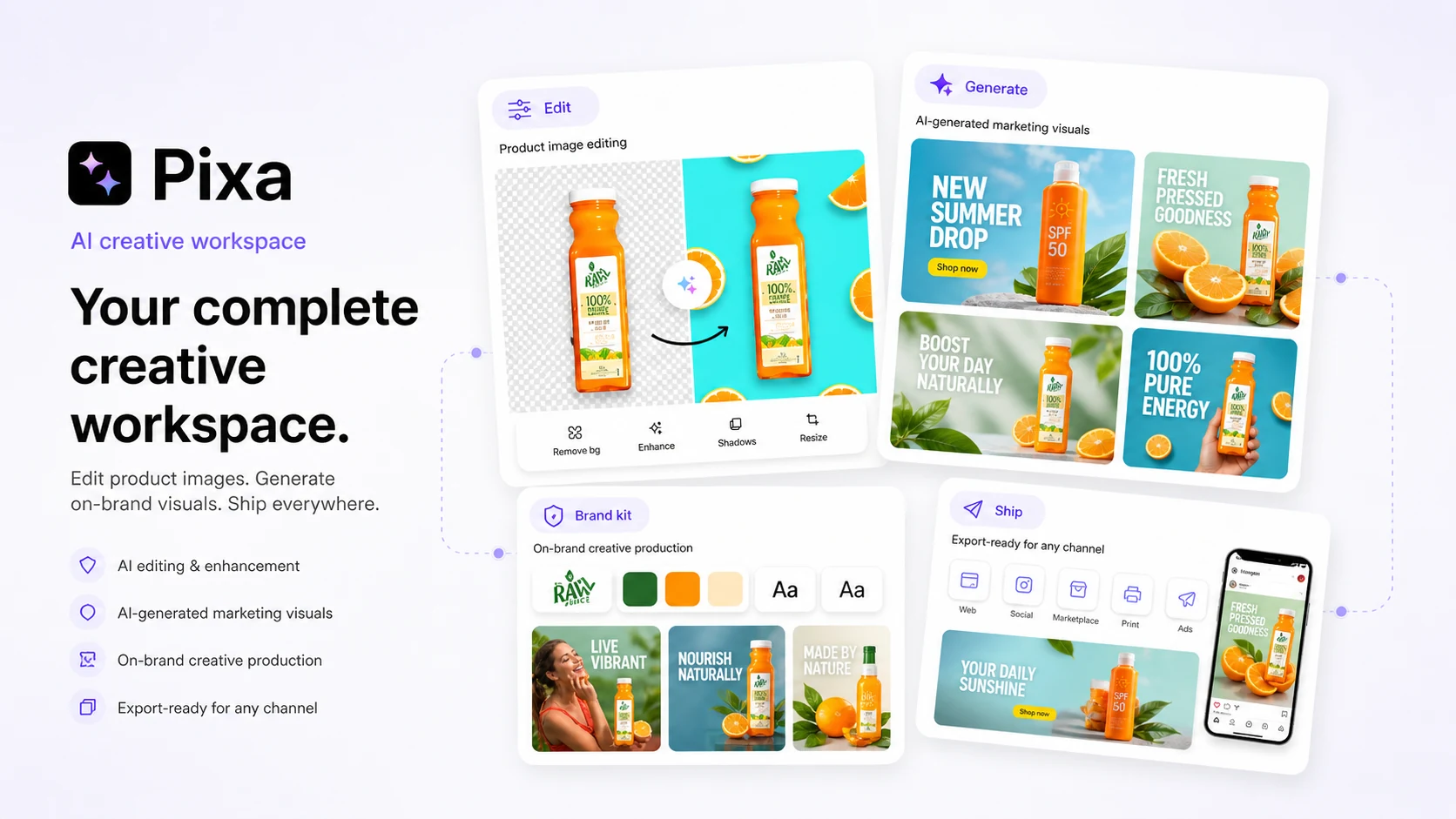
The current public positioning is broader than the old Pixelcut background-removal identity. Pixa now sits closer to an AI creative workspace: background removal, upscaling, Magic Eraser-style cleanup, generative fill, AI backgrounds, image and video generation, batch editing, team use, mobile apps, and API options. That makes it more useful than a one-purpose editor for some buyers, but also easier to overbuy if you do not know your monthly image workload.
For my money, Pixa makes the most sense for ecommerce sellers, creators, small businesses, and lightweight marketing teams that create visual assets repeatedly. It is less convincing if you need advanced manual design control, layered brand systems, or a traditional production design workflow.
The main caution is pricing fit. Pixa has a free plan, Pro and Business plans, monthly AI credits, team limits, batch export limits, and a separate API pricing path. A lower annual price can look attractive, but the safer decision is to test real product photos or creator assets first.
Next step: If Pixa sounds useful, test the current creative workflow before choosing a paid plan or annual billing.
Review snapshot
| Review point | Practical take |
|---|---|
| Best for | Ecommerce sellers, creators, and small teams producing repeat product visuals, thumbnails, ad images, and batch edits |
| Not ideal for | One-off casual edits, advanced design systems, or buyers who dislike credit-based AI usage |
| Main use case | Turning rough product or creator images into cleaner commercial visuals faster |
| Free path | Useful for testing basic output quality before paying |
| Paid path | Pro and Business depend on credits, seats, batch exports, and commercial-use needs |
| API path | Useful for developers and ecommerce workflows, but priced separately from normal creative plans |
| Main strength | Combines product-photo editing, AI creative generation, mobile access, batch work, and API options |
| Main concern | Buyers must understand credits, billing channel, refund path, and output quality before annual billing |
| Best alternatives to compare | Claid AI for ecommerce product photos; ArtSmart AI, OpenArt, and Imagine.Art for broader creative generation |
| Safest next step | Test real assets on the free plan, then compare Pro, Business, and API usage separately |
What is Pixa?
Pixa is best understood as an AI creative workspace for product photos, ecommerce images, creator visuals, lightweight marketing assets, and image-editing automation.
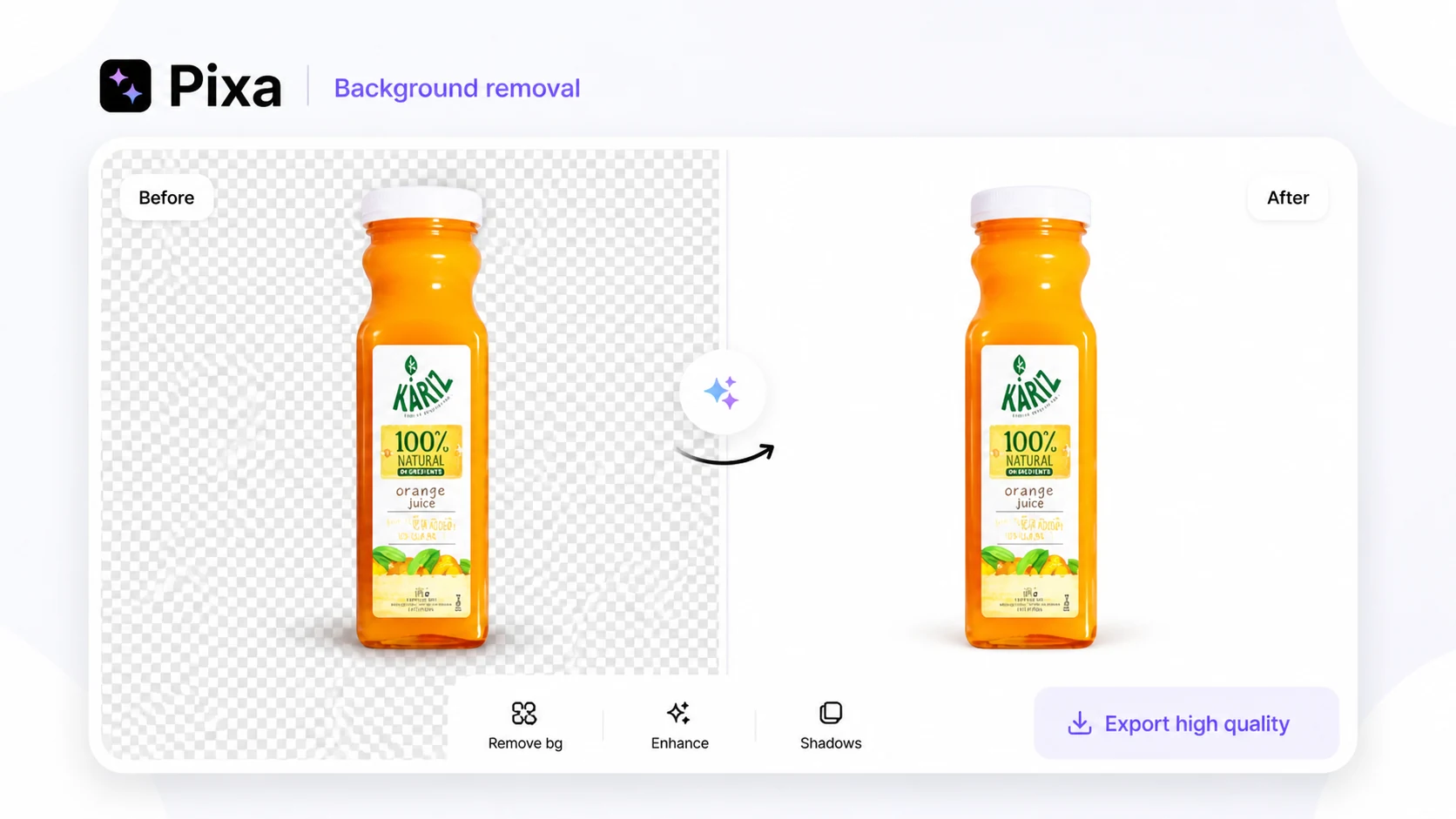
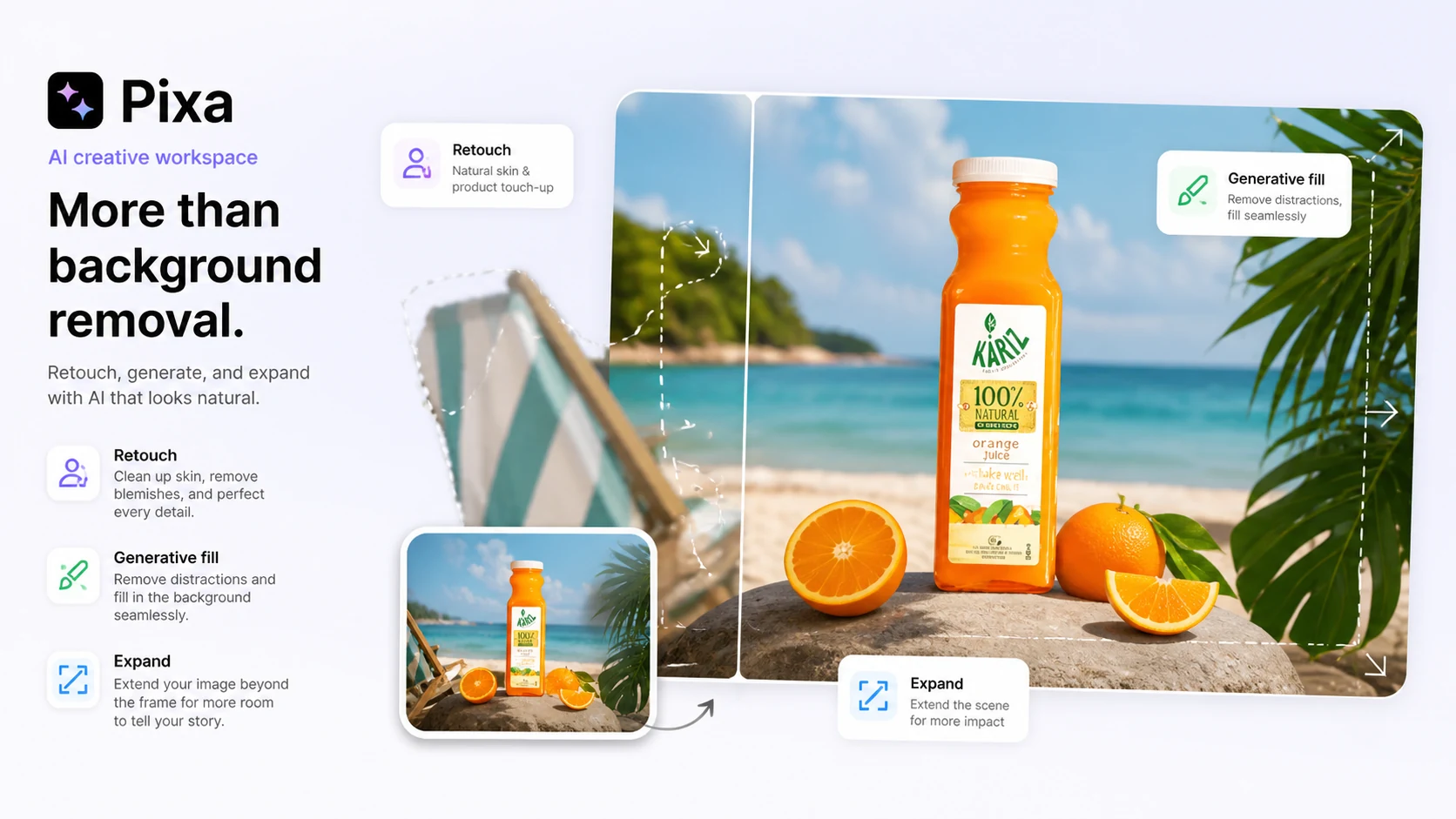
It is also the new brand home for Pixelcut. The rebrand matters because the current product is no longer positioned only as a quick mobile photo editor. Pixa is currently presented as a broader workspace for AI image editing and generation, with tools for background removal, image upscaling, AI backgrounds, Magic Eraser-style cleanup, generative fill, uncrop, AI ads, AI image generation, AI video generation, bulk editing, mobile apps, and API access.
The simple way to think about it is this: Pixa helps people who do not want to build every visual asset from scratch.
A seller may use it to clean product images. A creator may use it to generate thumbnails or campaign visuals. A small business may use it to make better marketing images without hiring a photographer for every shot. A developer may use the API to add background removal or image enhancement into an app or ecommerce workflow.
What it is not: Pixa is not a replacement for a full design suite when precise layout control, multi-person design systems, editable design files, deep typography control, or brand-governance workflows matter. It can produce useful commercial visuals quickly, but speed is not the same as final approval.
Our review approach: we compare public product pages, pricing details, help documentation, app marketplace signals, buyer workflow fit, and nearby alternatives. We do not treat a free plan, annual discount, or app-store rating as proof that the product fits every buyer.
Who should use Pixa?
Pixa is a strong fit for ecommerce sellers who constantly need cleaner product images. If your work involves marketplace listings, Shopify visuals, product cutouts, AI backgrounds, shadows, resized images, or batch cleanup, Pixa is much easier to justify than it is for a one-time edit.
It can also fit creators who need thumbnails, short campaign visuals, social images, and fast ideation. The buyer condition is simple: the generated or edited image must be good enough for the actual channel. A thumbnail that looks impressive in a preview still needs readable text, clear subject focus, and the right emotional hook.
Small businesses may like Pixa because it reduces friction. Not every business has a designer available for every product shot, promotional image, or quick campaign. Pixa can give a non-designer a faster starting point, especially when the visual task is practical rather than heavily art-directed.
Teams should consider Pixa if they can actually use shared credits, team seats, and batch exports. A paid team plan only makes sense when more than one person needs the workspace and there is enough recurring image volume to justify it.
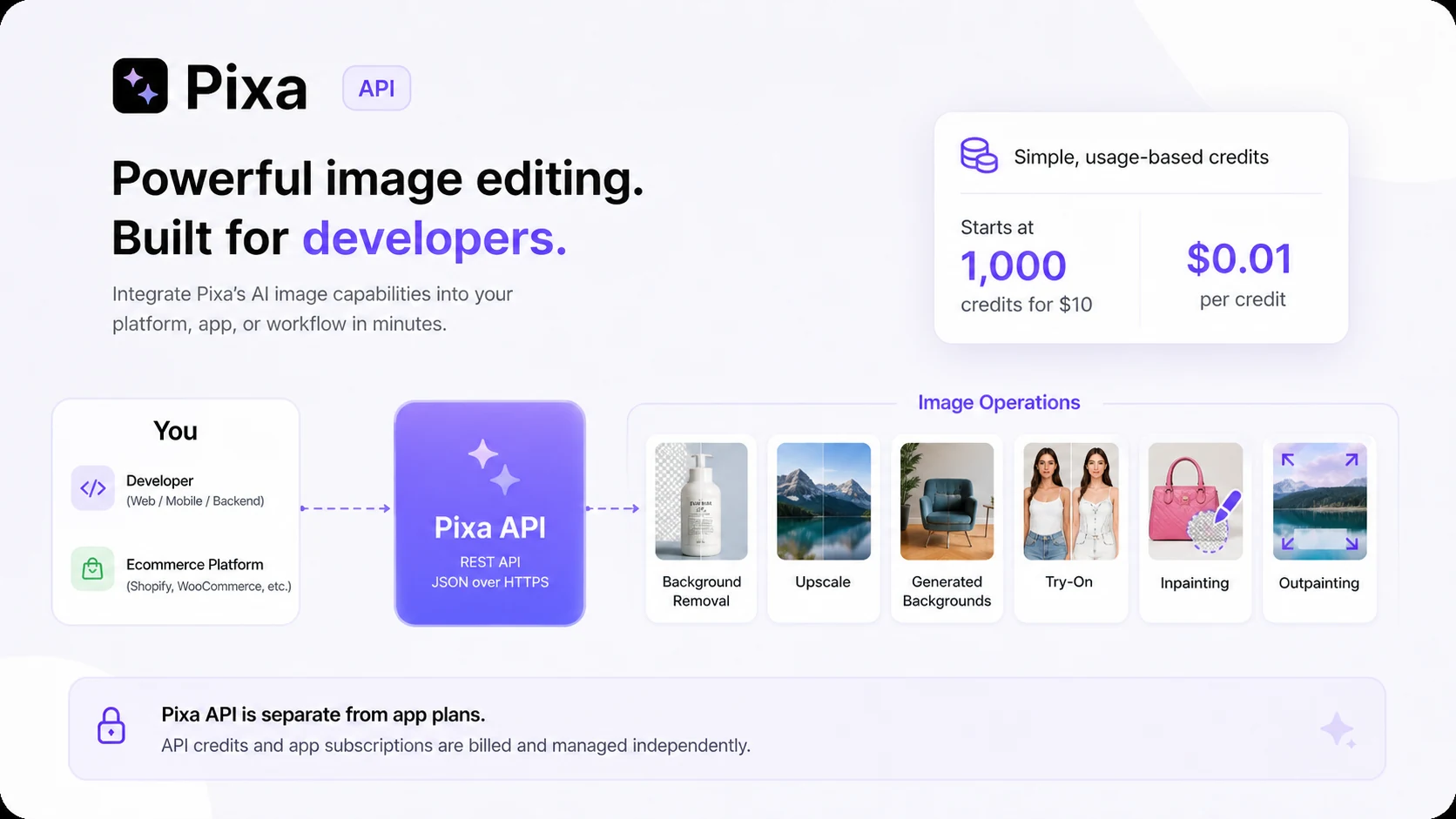
Developers and platform teams may consider Pixa for background removal, upscaling, generated backgrounds, try-on, inpainting, or outpainting through the API. That is a separate buying decision. A normal creative subscription does not automatically mean the API economics work for a production feature.
Who should avoid Pixa?
I would be careful with Pixa if you only need one or two casual edits. The free plan or a simpler one-purpose background remover may be enough. Paying for a broader creative workspace is unnecessary if the workflow is not repeated.
I would also avoid choosing it as a full design-system replacement. Pixa is useful for fast visual creation and cleanup, but design teams that need versioned files, exact layout control, reusable components, formal brand governance, and deeper collaboration may still need Canva, Adobe tools, Figma, or another design workflow around it.
Buyers who dislike credits should slow down. Pixa’s paid plans include monthly AI credits, and the API has separate credit pricing. That does not make the pricing bad, but it does mean the buyer needs to understand which operations consume credits and how quickly a real workload uses them.
Annual billing is another place to pause. A 20 percent annual saving can make sense after you know the tool fits. It is a weaker move before you have tested real images, batch exports, and the exact billing route.
Finally, buyers who expect AI visuals to be automatically publish-ready should be cautious. Product images still need review for accuracy. Clothing, jewelry, packaging, colors, shadows, faces, text, and ad-style visuals can look attractive while still being commercially wrong.
How Pixa fits into a real workflow
A good Pixa workflow starts before you open the editor.
First, collect real assets: rough product photos, creator images, thumbnails, listing images, ad concepts, or catalog shots. Do not judge Pixa only by sample visuals. The value appears when you test the messy images you actually need to publish.
Second, decide the main job. Is it background removal? Product-photo cleanup? AI background generation? Thumbnail creation? Batch export? Image upscaling? API processing? If you blur all of these together, the plan decision becomes confusing.
Third, run a small workflow. Remove a background, test edge quality, add a scene or shadow, upscale the result, export it, and compare the image against your publishing channel. For a product listing, that may mean checking whether the item still looks accurate. For a social thumbnail, it may mean checking readability and composition. For a team, it may mean checking whether naming, exporting, and review steps are easy enough to repeat.
Fourth, measure the friction. A tool is not valuable because it has many AI features. It is valuable if it reduces the number of small visual tasks that slow down real work.
Workflow check: If you already have product photos or creator assets ready, test Pixa with those real images before comparing paid plans.
Real-world buyer scenarios
Ecommerce seller cleaning product images
This is the most natural Pixa use case. A seller may need background removal, cleaner edges, consistent scenes, shadows, batch exports, and better images for listings or ads.
Pixa can fit well here if it reduces manual cleanup. The buyer should test product details carefully: hair, handles, transparent objects, jewelry edges, apparel folds, packaging text, and color accuracy. If those details drift, a human editor still needs to correct the output before publishing.
Creator making thumbnails and campaign visuals
Pixa can help creators move from idea to usable image faster, especially for thumbnails, social posts, ads, and short campaigns. The value is speed and variety.
The risk is that generated visuals may look good but not perform. For thumbnails, check text readability, emotional clarity, subject focus, and whether the image matches the actual video or offer. A fast draft still needs human taste.
Small business without a dedicated designer
A small business may use Pixa as a practical visual helper. It can create product scenes, remove backgrounds, clean images, and generate marketing-style visuals without needing a designer for every minor asset.
The limit is brand consistency. If your brand relies on strict layouts, exact typography, approved visual systems, or regulatory accuracy, Pixa should support the process rather than become the whole process.
Developer adding image operations to a product
The API route makes sense if a developer wants background removal, upscaling, generated backgrounds, try-on, inpainting, or outpainting inside a platform or internal tool.
This decision needs math. Estimate monthly successful operations, credit usage by endpoint, expected failure handling, output review, and whether API quality stays stable enough for production. Do not treat the app plan and API plan as the same purchase.
Key features that actually matter
Background removal and cleanup
Pixa is still closely associated with background removal, and this is one of the most commercially practical features for sellers. It can help turn casual product photos into cleaner listing images much faster than manual editing.
Buyer note: test difficult edges. Simple products are easy. The real test is hair, transparent objects, reflective surfaces, accessories, apparel, packaging, and shadows.
AI backgrounds, shadows, and product scenes
Product visuals often need more than a cutout. Pixa’s AI backgrounds and scene tools can help make product images look more polished for ecommerce, social posts, and ad-style assets.
Buyer note: check product truthfulness. A better scene should not misrepresent the product’s size, texture, color, use case, or included accessories.
Generative fill, uncrop, and retouching
These tools are useful when an image needs small changes, expansion, cleanup, or creative repair. This can be valuable for creators and marketers who need many quick variations.
Buyer note: do not publish retouched visuals without review. AI edits can look natural while changing product details in subtle ways.
Batch editing and exports
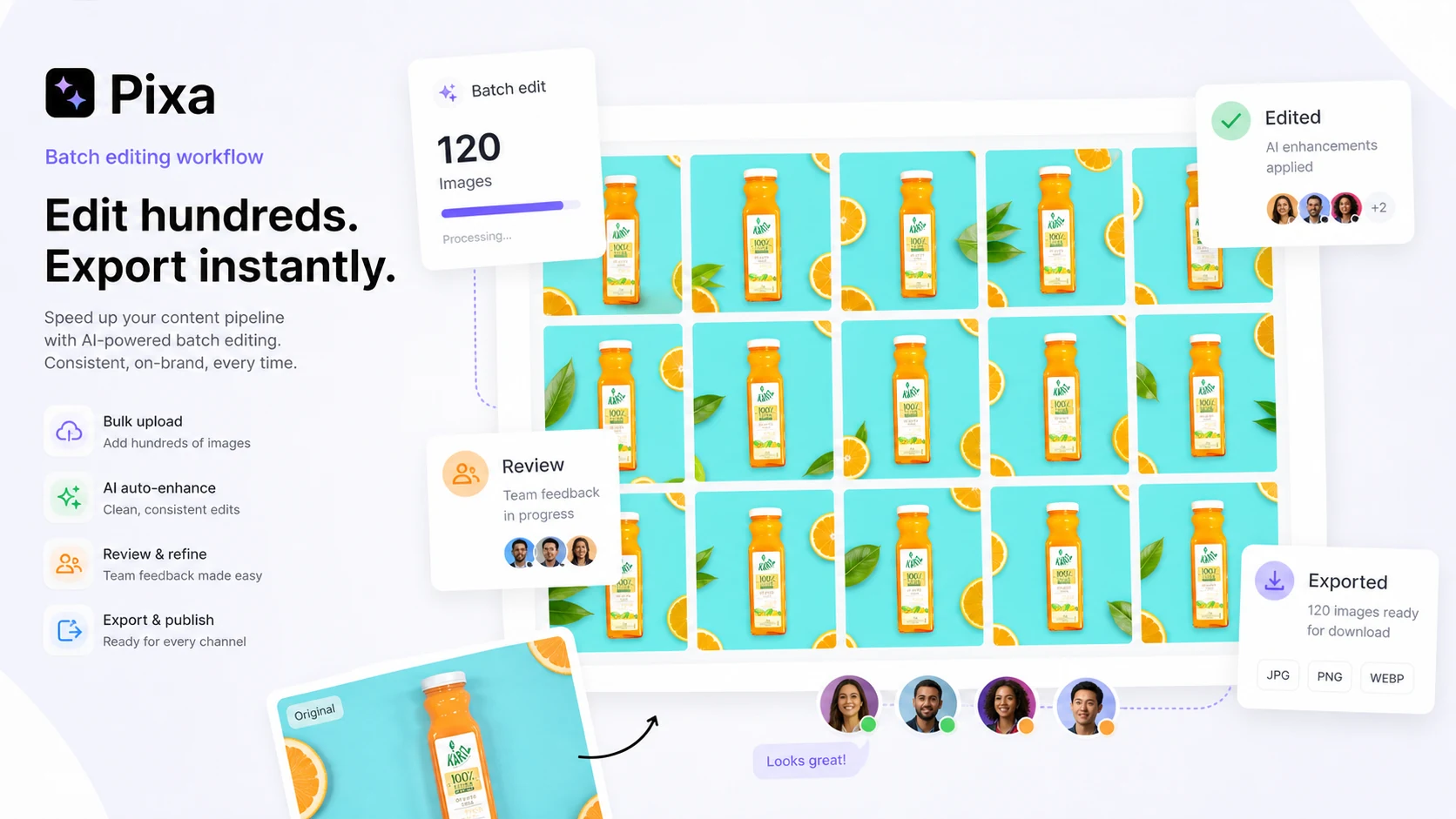
Batch editing is where Pixa becomes more serious for ecommerce. If a store has many product images, batch cleanup and exports can save real time.
Buyer note: batch work requires quality control. A tool that processes many images quickly can also multiply small mistakes quickly.
Mobile app and web workflow
Pixa’s mobile presence matters because many creators and sellers shoot, edit, and post from phones. The web workspace matters for more structured creative work.
Buyer note: verify the billing channel. App Store, Google Play, and web subscriptions may have different refund and cancellation handling.
API image operations
The API is relevant for technical buyers who want to embed image editing into a marketplace, app, or internal workflow. Pixa lists API options such as background removal, upscaling, generated backgrounds, virtual try-on, inpainting, and outpainting.
Buyer note: API use should be tested separately from the normal creative plan. Price the expected credit volume before building around it.
Pricing and plan value
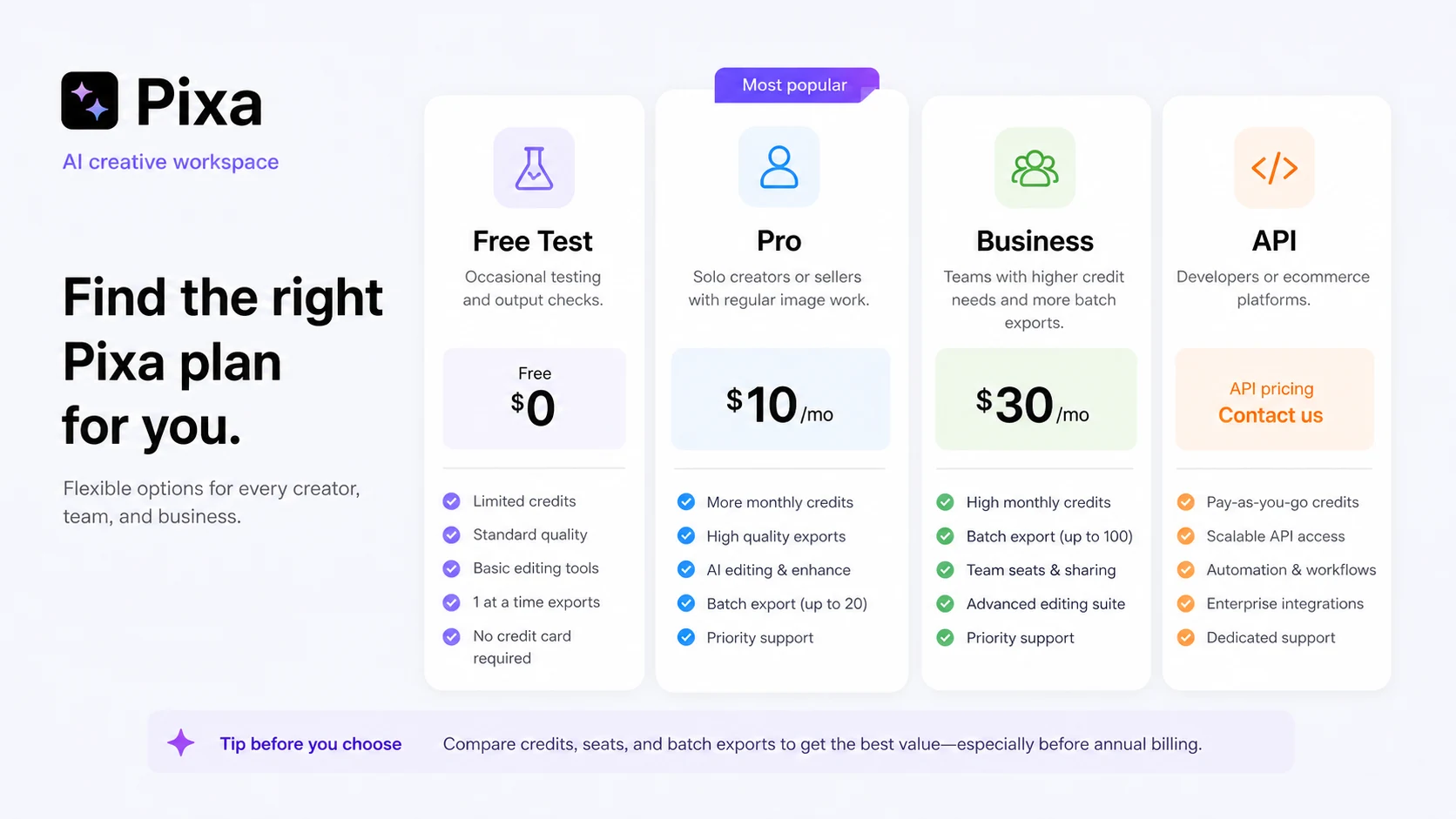
Pixa’s pricing looks easy at first because there is a free plan, a Pro plan, and a Business plan. The real decision is a little more layered.
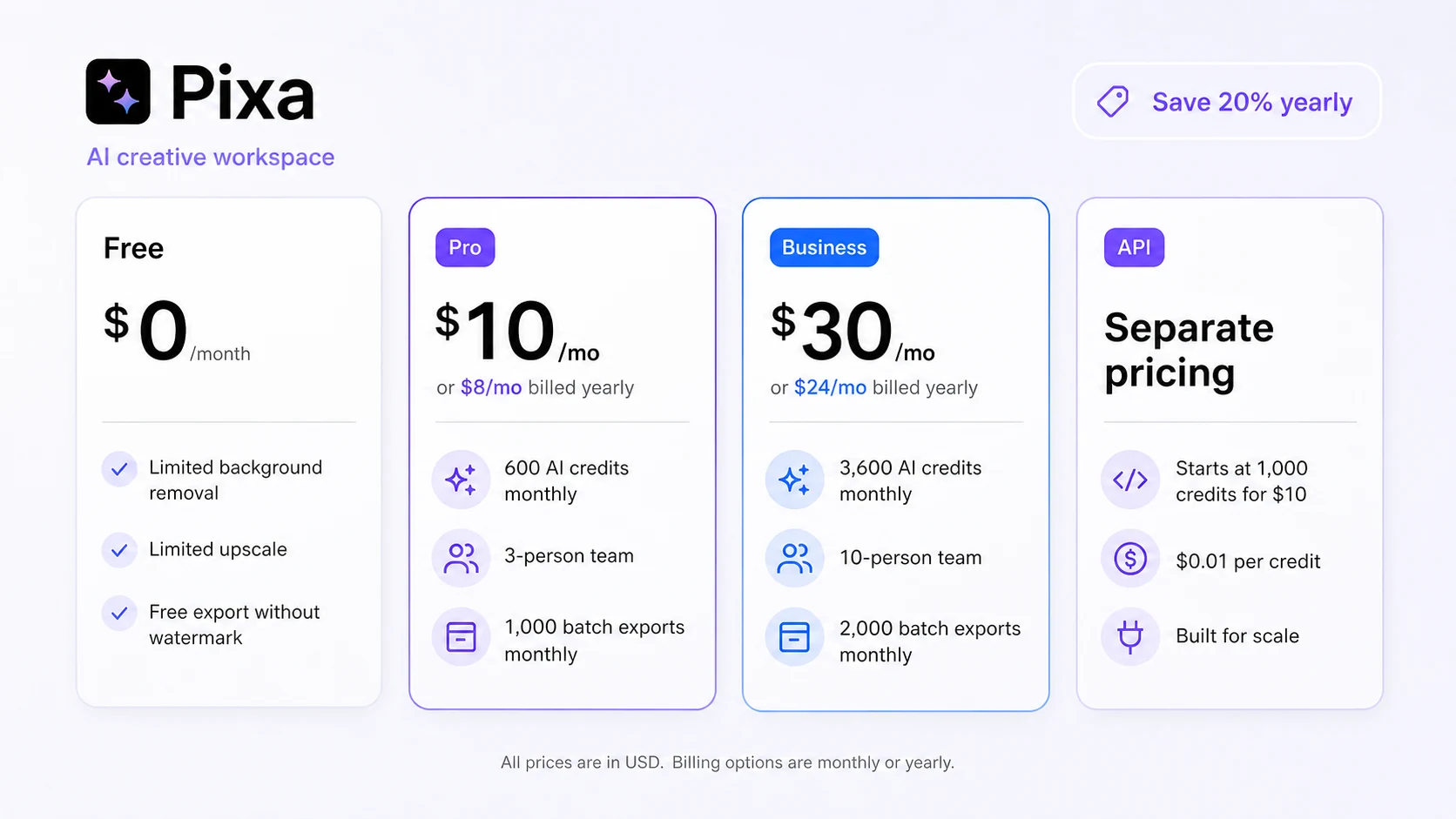
The current pricing page presents a $0 Free plan with limited background removal, limited upscale, and free export without watermark. That is the safest test path. It gives buyers a way to evaluate whether Pixa’s editing quality, export flow, and AI tools fit the kind of assets they actually publish.
The Pro path is the first serious paid route for individuals or small teams. The current public pricing shows Pro at $10 per month or $8 per month when billed yearly, with monthly AI credits, access to AI models, unlimited background removal and upscale, a 3-person team, batch exports, and commercial-license language.
The Business path is more about volume and team usage. The current pricing page shows Business at $30 per month or $24 per month when billed yearly, with more monthly AI credits, a larger team, more batch exports, priority support, and the same broader creative access.
The API path is separate. Pixa’s API pages describe credit-based usage for operations such as background removal, upscaling, generated backgrounds, virtual try-on, inpainting, and outpainting. That can be useful, but it should be evaluated like a developer cost, not like a creator subscription.
The pricing mistake I would avoid is moving to annual billing too early. Annual billing can be the better deal if Pixa becomes part of your weekly image workflow. It is not the better deal if you are still testing whether the output quality works for your products, thumbnails, or ad images.
Pricing check: Compare the current Free, Pro, Business, and API paths against your real monthly image volume before paying.
Free plan, trial, coupon, and checkout notes
The free plan is the right starting point for most buyers. Use it to test real images, not just sample prompts. A product-photo tool should be judged by your own images, your own exports, and your own publishing standards.
For Pro and Business, the important checks are credits, team size, batch exports, commercial-use needs, and whether the AI models you rely on consume credits at a pace that still feels reasonable. A buyer who mostly removes backgrounds has a different cost profile from a buyer who generates many AI scenes or runs higher-volume batch work.
Coupon and deal paths should come last. A checkout code or current offer can improve a purchase, but it should not be the reason you choose the tool. The safer order is: test output quality, estimate usage, confirm the right plan, then check current offers.
Billing channel also matters. Pixa is available through web and mobile app paths, and refund handling may depend on whether the subscription was created through the App Store, Google Play, or the web account billing area. Before annual billing, I would verify the live checkout route and the cancellation/refund path for the exact channel I am using.
Checkout order: Test the workflow first, confirm the right plan second, and only then check whether a current offer improves the purchase.
What I would check before buying Pixa
If I were buying Pixa for real product or creator work, I would check seven things before paying.
- Output quality on real assets. Test your own product photos, thumbnails, or campaign images. Promotional examples are not enough.
- Credit usage. Check which tools consume credits and whether your expected monthly workload fits the plan.
- Batch export limits. If you process many images, batch limits may matter more than the headline price.
- Team seats. A 3-person team and a 10-person team are different buying situations.
- Commercial-use needs. Confirm that the plan and asset workflow match how you intend to publish or sell the visuals.
- API pricing. For developer use, price the API separately and test the exact operations you need.
- Billing and refund path. Confirm whether you are paying through web, App Store, or Google Play, then read the current cancellation and refund route.
A simple test before paying
Before paying for Pixa, I would run a small test like this:
- Choose 10 real images from your actual workflow: product shots, creator assets, thumbnails, or ad visuals.
- Run at least three different jobs: background removal, AI background or scene generation, and export or batch preparation.
- Check edge quality, shadows, product accuracy, color consistency, and whether the final image still feels honest.
- Track which features use credits and how quickly your test workload consumes them.
- Compare the final outputs against what you would normally make in Canva, Photoshop, Photoroom, Claid AI, or a manual design workflow.
- Decide whether Pixa saves enough time to become a repeated process, not just a fun editor.
- Only then compare Free, Pro, Business, and API pricing.
That test is boring in the best way. It protects you from buying a creative tool because it feels impressive for one image, then realizing the monthly plan does not match your actual work.
Pros explained
Pixa is practical for repeated commercial visuals
Pixa is most useful when visual creation is a repeated operational problem. Product images, thumbnails, social ads, background cleanup, AI scenes, and batch exports are all tasks that can consume time every week.
This matters because the tool can replace several small editing steps. It stops being enough when a buyer needs deeper design control or a more formal creative production system.
The free plan lowers the first test risk
A free path is important in this category because image quality is hard to judge without using your own assets. Pixa’s free plan gives buyers a way to test the basic workflow before paying.
The free plan should not be treated as proof of paid value. It is a testing lane, not the final buying argument.
The ecosystem covers web, mobile, team, and API needs
Pixa can serve different buyer paths: mobile-first creators, web-based sellers, small teams, and developers. That breadth is useful when the buyer knows which path matters.
It can also create confusion. A creator plan, team plan, and API plan should not be judged as if they solve the same problem.
The rebrand clarifies the broader direction
Pixelcut was strongly associated with mobile photo editing and background removal. Pixa’s current positioning is broader: a creative platform for image and video generation, editing, product visuals, and ecommerce operations.
That broader direction is a benefit if you need more than background removal. It is a drawback if you only want the old simple tool and do not want to think about credits, models, or advanced creative features.
Cons explained
Credits can change the value calculation
A subscription price is not the whole story if advanced AI work depends on credits. Buyers should check the tools they actually use and estimate monthly volume.
This matters most for creators, agencies, and ecommerce teams that generate many variations. If credit use is high, the better plan may be different from the cheapest plan.
It is not a full design-system replacement
Pixa can help produce and edit visuals quickly, but it is not the same as a dedicated design suite. Buyers who need exact brand templates, layered design files, typography systems, formal approval workflows, or advanced creative direction may need another tool around it.
This is not a flaw so much as a category boundary. Pixa is stronger as a fast visual-production assistant than as the center of every design operation.
Refund clarity depends on checkout channel
The refund path is not as simple as “one policy fits every buyer.” App Store, Google Play, and web purchases may be handled differently.
For annual billing, this matters. I would not choose a long commitment until I knew where the subscription is billed, how cancellation works, and what refund request path applies.
AI visuals still need human review
AI-edited product photos can look convincing while still being inaccurate. Shadows, product proportions, colors, apparel fit, text, or generated scenes may need review before publishing.
This is especially important for ecommerce and ads. A faster visual is not automatically a safer commercial visual.
Green flags and red flags
Green flags
Pixa is a stronger candidate if you already create commercial visuals every week. Repeat work makes the paid plan easier to justify.
It is also a good sign if the free plan performs well on your real product photos or creator images. That is more meaningful than judging the homepage.
Another green flag is a clear volume estimate. If you know your monthly image count, team needs, and likely AI-credit usage, the plan decision becomes much cleaner.
Red flags
Slow down if you are choosing Pixa only because an annual discount appears cheaper. A lower monthly-equivalent price is not useful if the workflow does not stick.
Be careful if you need precise design control more than fast image production. Pixa may help create assets, but it may not replace a designer’s production workflow.
I would also pause if the API is the main reason to buy but the expected operation volume has not been priced. API usage needs a separate decision, especially for production tools.
Pixa vs alternatives
Pixa sits in a crowded creative category, so the comparison depends on the job you are buying for.
Claid AI vs Pixa
Claid AI is the closest comparison if the buyer mainly cares about ecommerce product photography, catalog-image optimization, and product-photo automation. It may feel more focused for businesses that need consistent product images at scale.
Pixa may still make more sense if the buyer wants a broader creator workspace that includes mobile editing, thumbnails, AI generation, background removal, batch work, and API options under one brand.
If product-photo automation is the primary job, compare the Claid AI review before choosing Pixa.
ArtSmart AI vs Pixa
ArtSmart AI is a more direct creative-generation comparison when the buyer wants AI-generated marketing images or art-style visuals. It may be a better fit when prompt-driven image creation matters more than product-photo cleanup.
Pixa is stronger when background removal, ecommerce visuals, mobile editing, and batch product work matter alongside generation.
OpenArt vs Pixa
OpenArt is more relevant for creators who want a broader AI art and model-driven generation workflow. It is not the same as buying a product-photo workspace.
Pixa is the safer comparison for sellers and small businesses that need practical visual assets, not only creative exploration.
Imagine.Art vs Pixa
Imagine.Art is another broader AI creative generation route. It may fit buyers who mainly want to produce images and creative concepts from prompts.
Pixa may be the better fit when the buyer also needs background removal, upscaling, batch image cleanup, product scenes, and a mobile-first editing path.
Canva, Adobe, and Photoroom as adjacent routes
Canva and Adobe tools are adjacent, not one-to-one replacements. They may be better for manual layouts, brand systems, templates, and formal design workflows. Photoroom is a closer product-photo comparison for sellers who want a streamlined ecommerce image workflow.
The practical decision is not “which tool is best?” It is “which tool matches the visual job I repeat most often?”
Trust, refund, and buyer-risk notes
My confidence is strongest around Pixa’s product role: it is clearly positioned as a creative workspace for AI image and video editing, product visuals, mobile creation, and developer image operations. My confidence is more cautious around buyer value because credits, billing channel, output quality, and refund handling depend on how the buyer uses it.
The rebrand is another reason to read current pages carefully. Older Pixelcut references can still be useful, but buyers should rely on current public positioning, the current pricing page, and the live checkout route rather than older third-party pricing summaries.
On privacy and data handling, buyers should remember that image tools process uploaded content, usage data, payment data, and app activity depending on the platform and service used. That may be normal for this category, but businesses uploading sensitive product assets should read the current privacy policy and decide whether the workflow fits internal rules.
Refund handling deserves attention. Pixa’s public help article explains refund request paths by billing channel rather than giving a simple universal guarantee. Website billing, App Store billing, and Google Play billing may lead to different support paths.
The buyer-risk rule is simple: test monthly before annual, check credits before scaling, and review AI visuals before publishing.
Final verdict
I would consider Pixa if you repeatedly need product images, background cleanup, AI scenes, thumbnails, batch exports, or lightweight creative assets and you want a faster workflow than manual editing every time.
I would skip it if you only need one quick edit, dislike credit-based AI usage, need deep design-system control, or cannot verify the billing and refund path before paying.
I would compare it with Claid AI if ecommerce product-photo automation is the main job. I would compare it with ArtSmart AI, OpenArt, or Imagine.Art if prompt-based creative generation matters more than product cleanup. I would keep Canva, Adobe, Photoroom, or a dedicated design workflow in the conversation if manual layout, brand systems, or production design control matter more.
The safest next step is to test Pixa with real assets first. If the free plan proves that the output quality, export workflow, and credit usage make sense, then the Pro, Business, or API path becomes a cleaner decision. If the test feels merely interesting but not repeatable, the coupon path should not pull you into a paid plan.