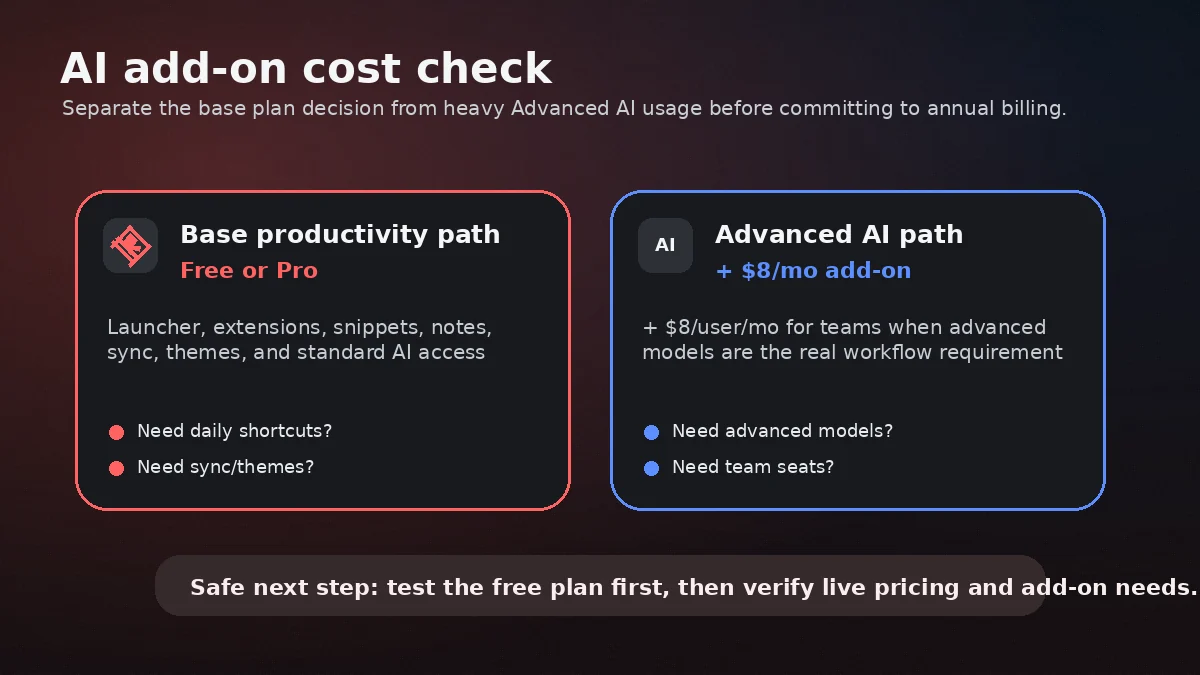
Quick verdict
Raycast is worth considering if your desktop work is full of repeated actions: opening the same apps, jumping to the same links, pasting the same snippets, searching files, managing windows, running small commands, and asking AI for help without leaving the keyboard.
That is the buying case.
It is not automatically worth paying for just because the app feels fast, polished, and generous on the free plan. The mistake buyers can make with Raycast is assuming that a clever launcher will create a productivity system by itself. It will not. Raycast becomes valuable when you turn repeated work into commands, shortcuts, snippets, quicklinks, extensions, and habits.
For my money, Raycast is strongest for Mac power users, developers, operators, technical founders, and knowledge workers who already feel friction in daily desktop switching. It is weaker for casual users who only need a better Spotlight replacement, people who prefer simple single-purpose apps, or teams that want a collaborative workspace rather than an operating-system command layer.
The paid decision is narrower than the homepage makes it feel. Pro makes sense when Raycast AI, Cloud Sync, custom themes, translation, unlimited notes, unlimited clipboard history, or custom window commands become part of daily work. Advanced AI should be calculated separately. Teams Pro needs an even more careful check because shared commands, snippets, quicklinks, private extensions, and admin controls only matter if the organization will actually standardize around them.
The safest next step is simple: start free, build a real workflow, and only pay after Raycast earns a place in your working day.
Next step: If Raycast looks like a real daily workflow layer, test the free plan before treating Pro as necessary.
Review snapshot
| Review point | Practical take |
|---|---|
| Best for | Keyboard-first Mac users, developers, operators, founders, and teams with repeated desktop workflows |
| Not ideal for | Casual launcher users, simple AI chatbot buyers, Windows-first teams needing full parity today, or users who dislike configuration |
| Main use case | Turning repeated desktop actions into commands, quicklinks, snippets, extensions, notes, window actions, and AI prompts |
| Pricing note | Free plan available; Pro is listed at $10/month or $8/month billed annually; Teams Pro is listed at $15/user/month or $12/user/month billed annually |
| AI cost note | Advanced AI is a separate add-on on paid Pro paths, so AI-heavy buyers should include it in the real cost |
| Free path | Strong enough to test launcher habits before paying |
| Main strength | Raycast can replace several small workflow utilities when the buyer builds habits around it |
| Main concern | Value depends on repeated use, configuration, platform fit, and add-on math |
| Direct comparison style | Desktop launcher / command layer tools such as Alfred or platform-native utilities |
| Adjacent routes | Taskade for shared AI workspace, Monica or Sider for browser AI, Blitzit for focus and task execution |
| Best next step | Install free, set up 3 to 5 repeated workflows, then revisit Pro only if usage sticks |
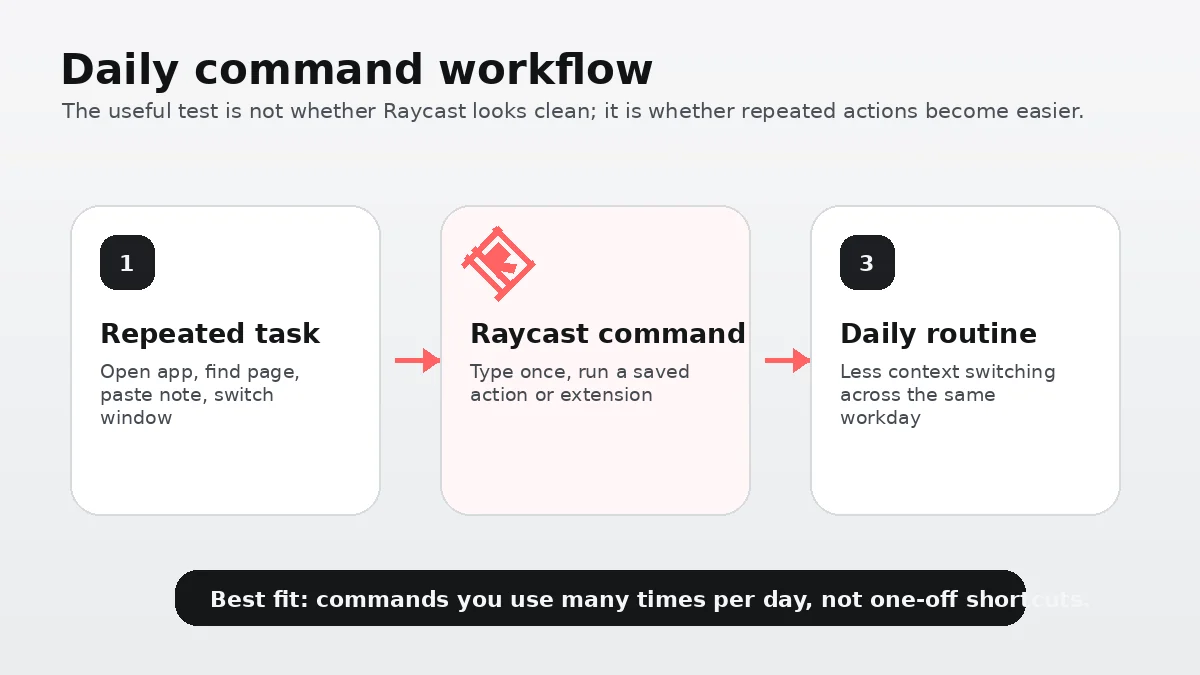
What is Raycast?
Raycast is best understood as a keyboard-first launcher and productivity command layer for desktop work. It started from the same broad category as Spotlight-style launchers, but its current public positioning is wider: app launching, command search, snippets, quicklinks, clipboard history, notes, calculator, file search, window management, extensions, AI, team sharing, and developer workflows.
That breadth is the reason Raycast is interesting. It is also the reason buyers should slow down.
A simple launcher saves a few clicks. A real Raycast workflow can become the way you open projects, run small actions, search tools, paste common replies, manage windows, trigger AI prompts, and use internal commands. Those are different buying decisions.
Raycast is not mainly a browser chatbot. It is not a traditional project management app. It is not a passive productivity subscription where value appears without setup. The product makes the most sense when you are willing to notice repeated actions and turn them into keyboard-driven routines.
Our review approach compares public product pages, pricing details, help documentation, deal terms, buyer workflow fit, and nearby alternatives. I would not treat a coupon, a free tier, or a slick demo as proof that Raycast fits. The proof is whether the command layer becomes part of real work.
The common wrong expectation is that Raycast will instantly make anyone productive. It can make the right user faster. But it asks for habit building. If you dislike configuring shortcuts, learning commands, or building small workflows, Raycast may feel impressive without becoming essential.
Who should use Raycast?
Raycast fits Mac power users who already live through the keyboard. If you constantly open apps, jump to project links, paste reusable text, search files, manage windows, and move between tools, Raycast can reduce friction in small places that add up. The condition is that you actually build the shortcuts and commands instead of just browsing the extension store.
Developers and technical operators are another strong fit. Raycast becomes more useful when extensions, APIs, scripts, issue trackers, GitHub workflows, internal tools, and command-style actions matter. A developer who can turn repeated tasks into extension-based workflows will usually see more value than a casual user who only wants a prettier app search box.
Knowledge workers who want AI inside the operating-system flow may also benefit. The value is not just “Raycast has AI.” The value is asking, rewriting, translating, summarizing, or prompting from the same launcher where other desktop actions already happen. If AI is only occasional, the free allowance or a separate chatbot may be enough. If AI is part of the daily desktop rhythm, Pro becomes easier to justify.
Small teams can consider Raycast when shared commands, snippets, quicklinks, and private extensions would standardize real work. Support teams, technical teams, ops teams, and product teams may have repeated internal routes, canned replies, dashboards, and lookups that benefit from a shared command layer. The team should still test this with a small group before buying paid seats.
Raycast also fits buyers who enjoy system-building. That point matters. The product rewards people who are willing to tune their setup over time. If you want a tool that quietly shapes itself around your habits without much effort, Raycast may feel like work before it feels like leverage.
Who should avoid Raycast?
Avoid paying for Raycast if you only need a basic launcher. macOS Spotlight, Windows search, PowerToys, Alfred, or other utilities may be enough depending on your platform and preference. Raycast’s free plan may also be enough if the core launcher is all you need.
I would also be careful if you are mainly buying for AI. Raycast AI is convenient because it lives inside the launcher, but a browser-based AI assistant, dedicated AI workspace, or coding assistant may be a better fit if the main job is long-form chat, document work, agentic coding, or browser-side reading and writing.
Windows-first buyers should slow down. Raycast for Windows is public beta, and official wording still points to ongoing feature work and platform parity. That does not make it a bad product. It means a Windows buyer should test the current app directly rather than assuming the macOS experience has fully arrived.
Teams should avoid a quick rollout if they have not proven shared workflows. A team subscription is not justified because one power user loves Raycast. The organization needs shared commands, snippets, quicklinks, private extensions, admin controls, or AI governance that real team members will use.
Finally, avoid Raycast if you dislike configuration. Some tools are valuable because they require almost no behavior change. Raycast is different. The better it gets, the more it reflects the habits you deliberately build into it.
How Raycast fits into a real workflow
A good Raycast workflow does not start with installing every extension. It starts with noticing repeated friction.
For example, a user might realize they open the same client dashboard ten times a day, paste the same reply into support tickets, resize windows during every writing session, search the same project folder, and ask small AI questions while working. Raycast becomes useful when those actions move into commands, snippets, quicklinks, hotkeys, window layouts, and AI prompts.
The workflow I would use for evaluation looks like this:
- Install Raycast and keep the setup narrow.
- Choose three repeated actions from your real workday.
- Turn one into a Quicklink, one into a snippet, and one into a command or extension flow.
- Use the launcher for several working days instead of testing it for ten minutes.
- Track whether it reduces switching, searching, typing, or window friction.
- Add AI only if it improves the same workflow rather than becoming a separate novelty.
- Revisit Pro only after the free workflow has become normal.
That sequence protects you from buying based on the demo effect. Raycast demos well because the command palette is clean and fast. But the real value appears only after the shortcuts match your own work.
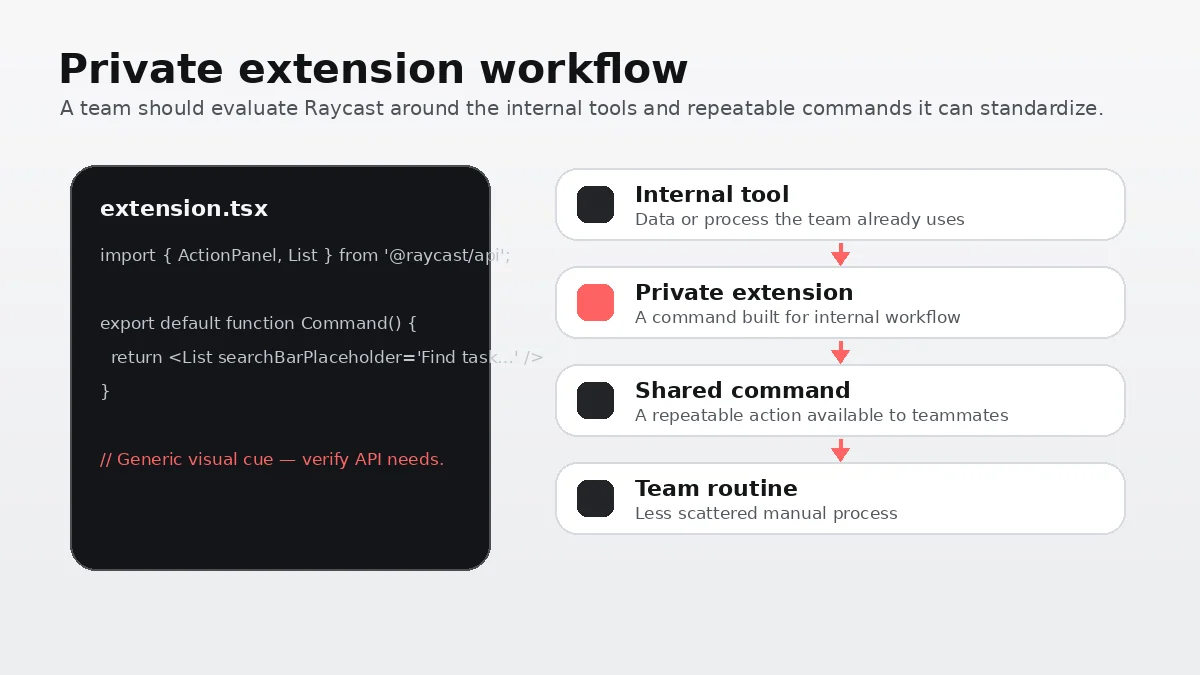
The strongest fit is not “I want to try a productivity app.” The stronger fit is “I repeat these actions every day, and Raycast can make them faster from the keyboard.”
Workflow check: Use Raycast free with a small set of real commands before judging whether Pro, Teams Pro, or Advanced AI is worth paying for.
Real-world buyer scenarios
Solo Mac power user replacing several small utilities
This is probably Raycast’s cleanest buyer scenario. A Mac user who currently uses separate tools for clipboard history, snippets, quick calculations, app launching, window management, links, and lightweight notes may find Raycast unusually efficient.
The risk is assuming every utility should be replaced. The better test is practical: choose the utilities you use daily and see whether Raycast handles them with less friction. If the free plan covers most of this, Pro may not be urgent.
Developer building a command layer around tools
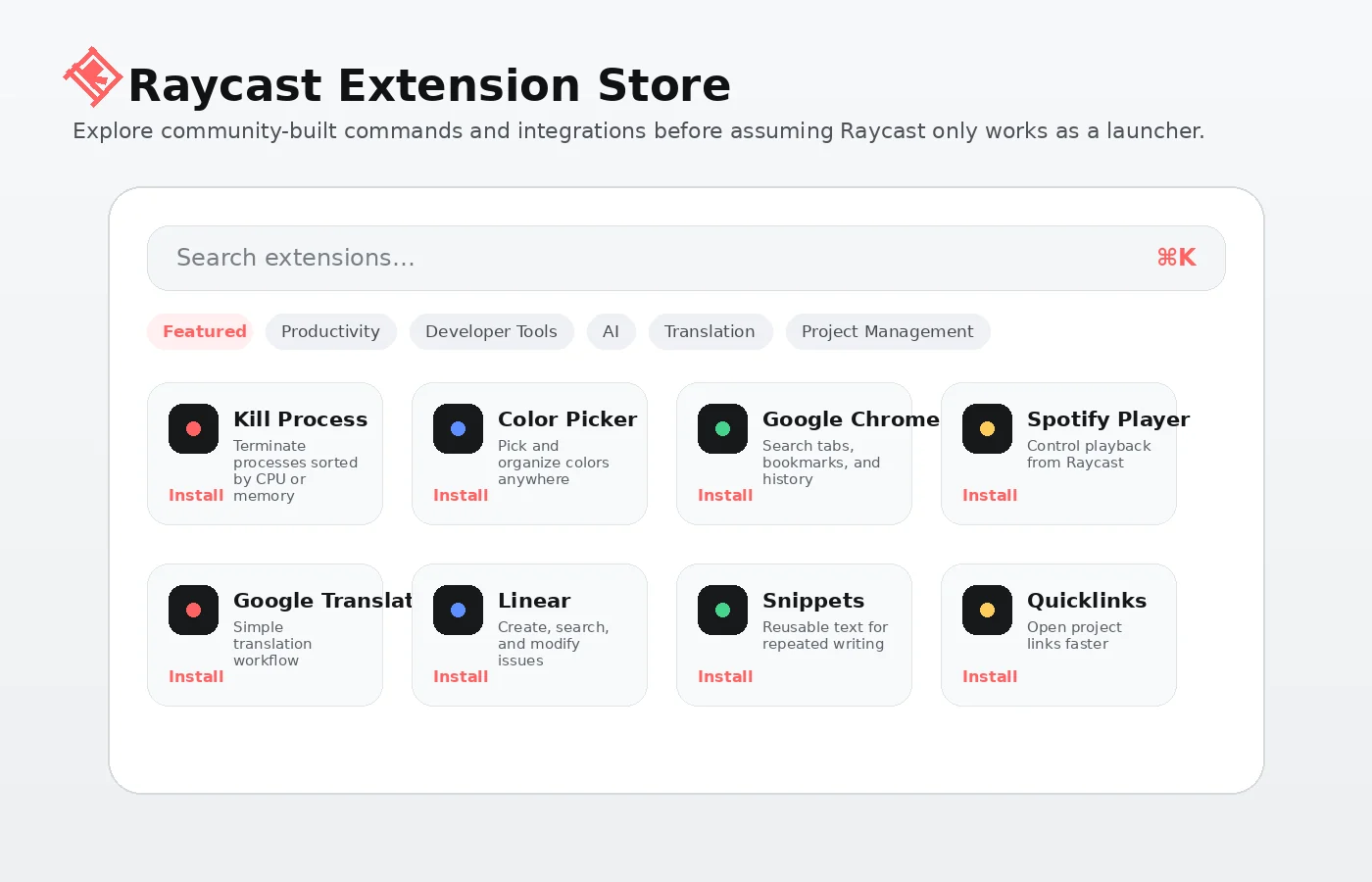
A developer may get more from Raycast than a general user because the extension ecosystem and API are natural fits for technical workflows. GitHub, Linear, Notion, JSON formatting, package search, internal tools, and custom extensions are the type of workflows where a command palette can feel like a real operating layer.
The buyer check is maintenance. A custom extension or internal command is valuable only if someone owns it, updates it, and documents it. For personal use, that may be easy. For a team, it becomes an operational decision.
Content or marketing operator using snippets and AI
A content operator might use Raycast for recurring links, prompt snippets, short rewrites, translations, reminders, quick notes, and window switching. This can be useful because content work often involves many small repeated movements between tools.
The caution is AI cost. If Raycast AI is the reason to upgrade, check whether the base Pro plan is enough or whether Advanced AI changes the monthly calculation. Do not compare Raycast only against a cheap chatbot plan; compare it against the convenience of having AI inside the command layer.
Small team standardizing repeated actions
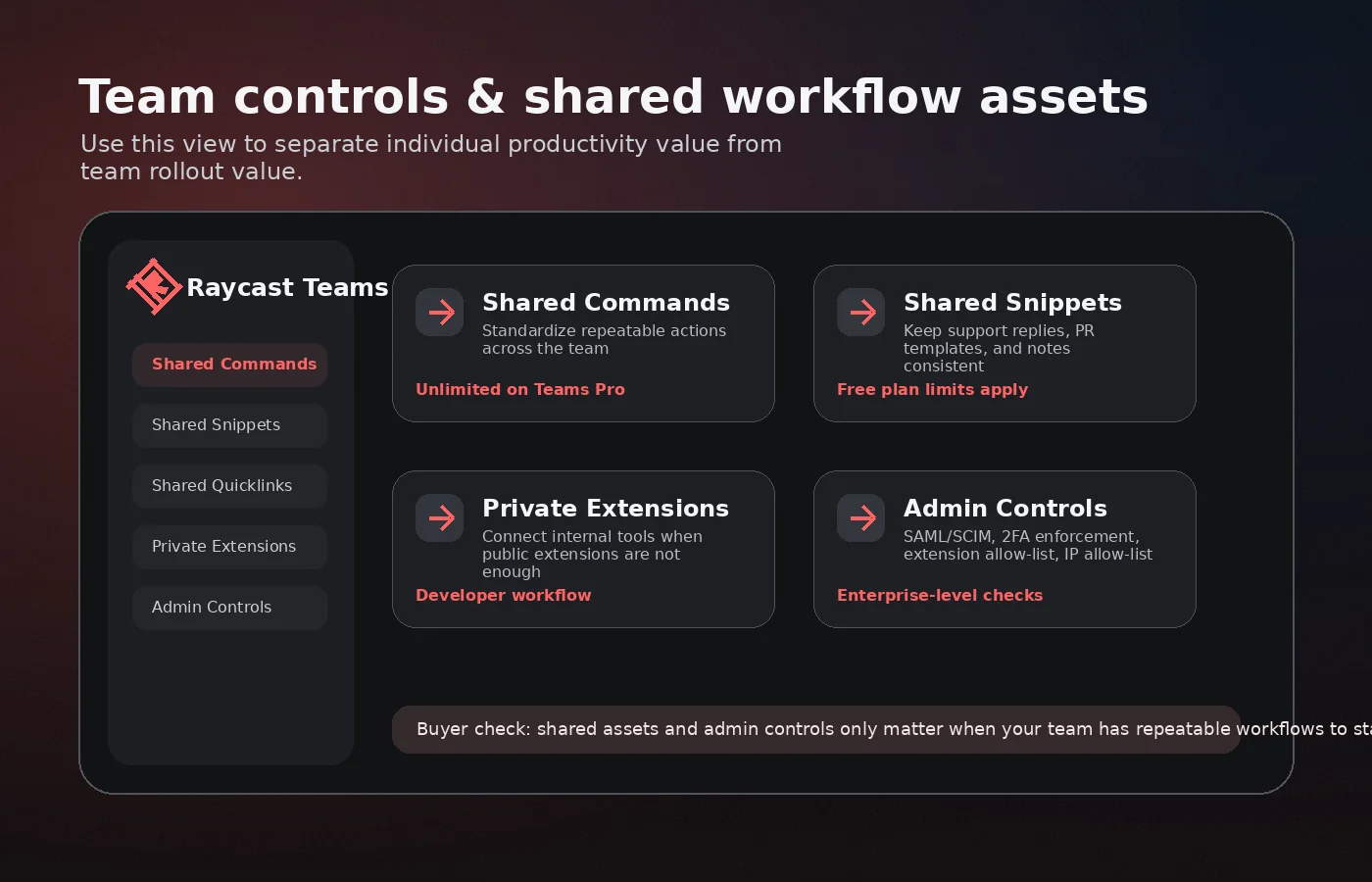
A team can use Raycast to share commands, quicklinks, snippets, and private extensions. This can be especially useful for teams with internal dashboards, support workflows, onboarding links, brand assets, or repeated operational lookups.
The failure mode is rollout enthusiasm. One technical person may love Raycast while the rest of the team keeps using bookmarks and docs. Before Teams Pro, I would test a shared workflow with a small group and measure whether the shared assets actually reduce confusion.
Key features that actually matter
Keyboard-first command palette
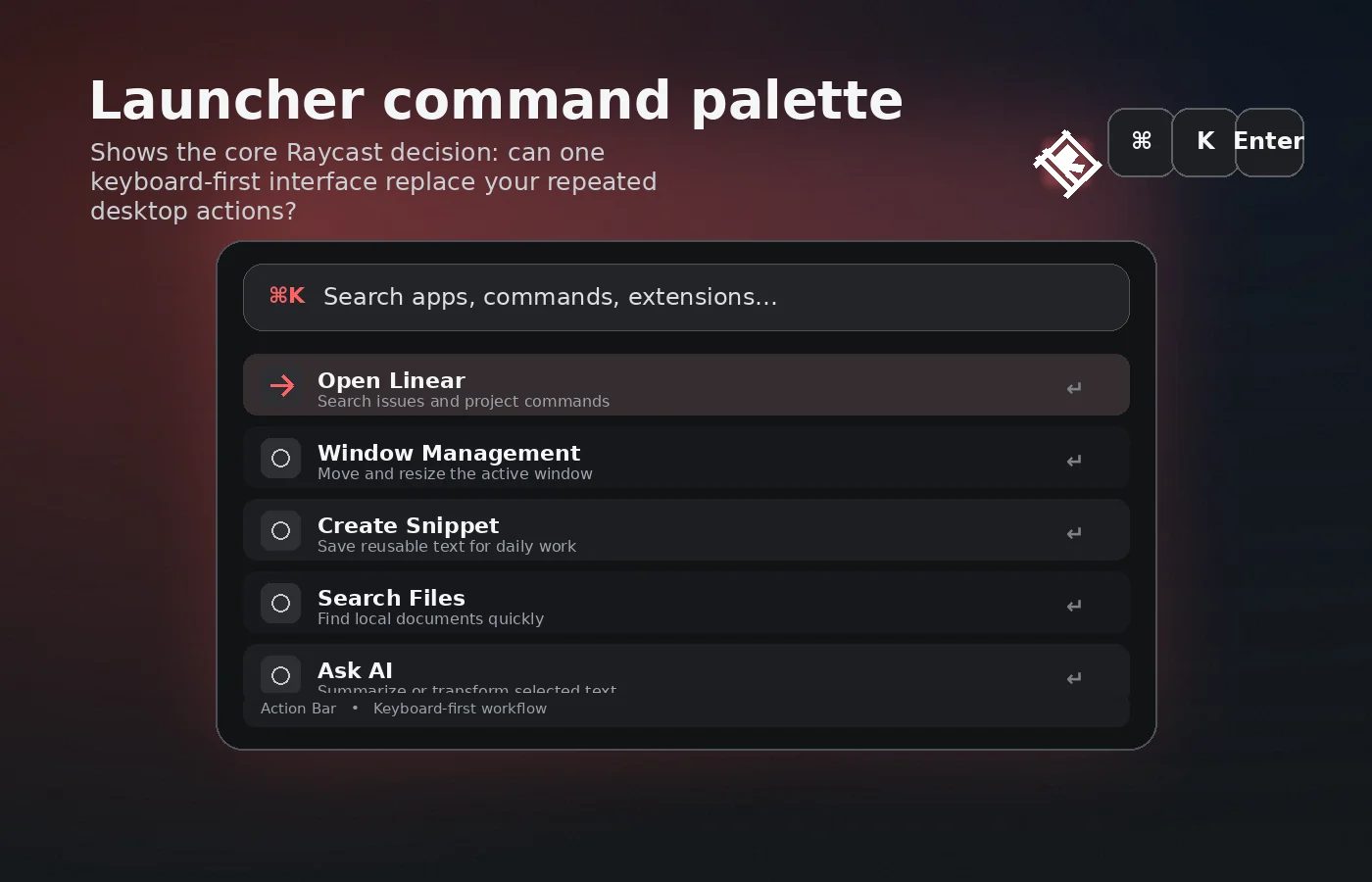
The command palette is the center of Raycast. It gives buyers one place to open apps, run commands, search actions, and move through work without repeatedly reaching for menus or browser tabs.
Buyer note: This matters only if you enjoy keyboard-first work. If you prefer visual dashboards, Raycast may feel efficient in theory but unnatural in practice.
Quicklinks and snippets
Quicklinks and snippets are less glamorous than AI, but they may be the reason Raycast sticks. A quicklink can open a project route, search a website, or jump to a repeated destination. A snippet can save repeated writing, support replies, code fragments, email patterns, or prompt building blocks.
Buyer note: Start here before judging Pro. These features often reveal whether Raycast matches your actual habits.
Extensions and developer tooling
Raycast’s extension ecosystem turns it from a launcher into a flexible command surface. Technical users can connect tools, build commands, and create custom workflows. Teams can also use private extensions when internal processes justify it.
Buyer note: Extensions are valuable when they map to tools you already use. A large extension store is not useful if your real stack is not represented or if setup friction stops adoption.
Raycast AI
Raycast AI is useful because it can sit inside the same flow as other desktop actions. That is different from opening a browser chatbot. For short questions, rewriting, translation, prompts, and lightweight assistance, the command-layer placement can reduce switching.
Buyer note: AI is also where plan math matters. Free AI access, Pro AI, Advanced AI, BYOK options, and request limits should be checked against real usage. Do not assume every advanced model or unlimited use is included in the base Pro decision.
Cloud Sync, notes, clipboard, and themes
These features are less exciting in a headline but important in daily use. Cloud Sync matters if you want Raycast settings and content across devices. Unlimited notes and clipboard history matter if Raycast becomes a working memory layer. Themes are more personal, but they can matter to users who live in the launcher all day.
Buyer note: These are good Pro reasons only if the free limits are actually getting in your way.
Team sharing and controls
Raycast Teams can make shared snippets, quicklinks, commands, private extensions, and organization controls part of a team workflow. For technical teams, this can be much more practical than another shared document full of links.
Buyer note: Team value should be proven with a small rollout. The team plan is not just an individual productivity upgrade multiplied by seat count.
Pricing and plan value
Raycast’s pricing is unusually buyer-friendly at the entry point because the free plan is not just a teaser. It covers enough core launcher value that many users can test the product seriously before paying.
At the time of this review, the public pricing page lists Free, Pro, Teams Free, Teams Pro, and Enterprise paths. Individual Pro is shown at $10 per month or $8 per month with annual billing. Teams Pro is shown at $15 per user per month or $12 per user per month with annual billing. The pricing page also lists an Advanced AI add-on at $8 per month for individual Pro or $8 per user per month for Teams Pro.
The important point is not the headline number. It is what triggers the paid need.
Free is the right starting point if you are testing launcher habits, snippets, quicklinks, extensions, limited AI access, clipboard history, and notes. Pro makes more sense when Cloud Sync, Raycast AI, unlimited notes, unlimited clipboard history, custom themes, translation, or custom window management commands become daily requirements.
Advanced AI should be treated as a separate decision. If your workflow depends on higher-end models or heavier AI use, calculate the add-on into the real monthly cost. A buyer who compares only the base Pro price may undercount the actual subscription.
Teams Free and Teams Pro need a different lens. The question is not “is Raycast good?” The question is whether shared commands, snippets, quicklinks, private extensions, admin controls, and AI governance matter enough for the organization. A team with real internal workflows may find this valuable. A team with no shared command culture may simply create another tool people forget to use.
Annual billing can be a good discount after Raycast has proven repeated value. I would not start annual just because the monthly equivalent looks better. With a configurable tool, usage proof matters more than savings math.
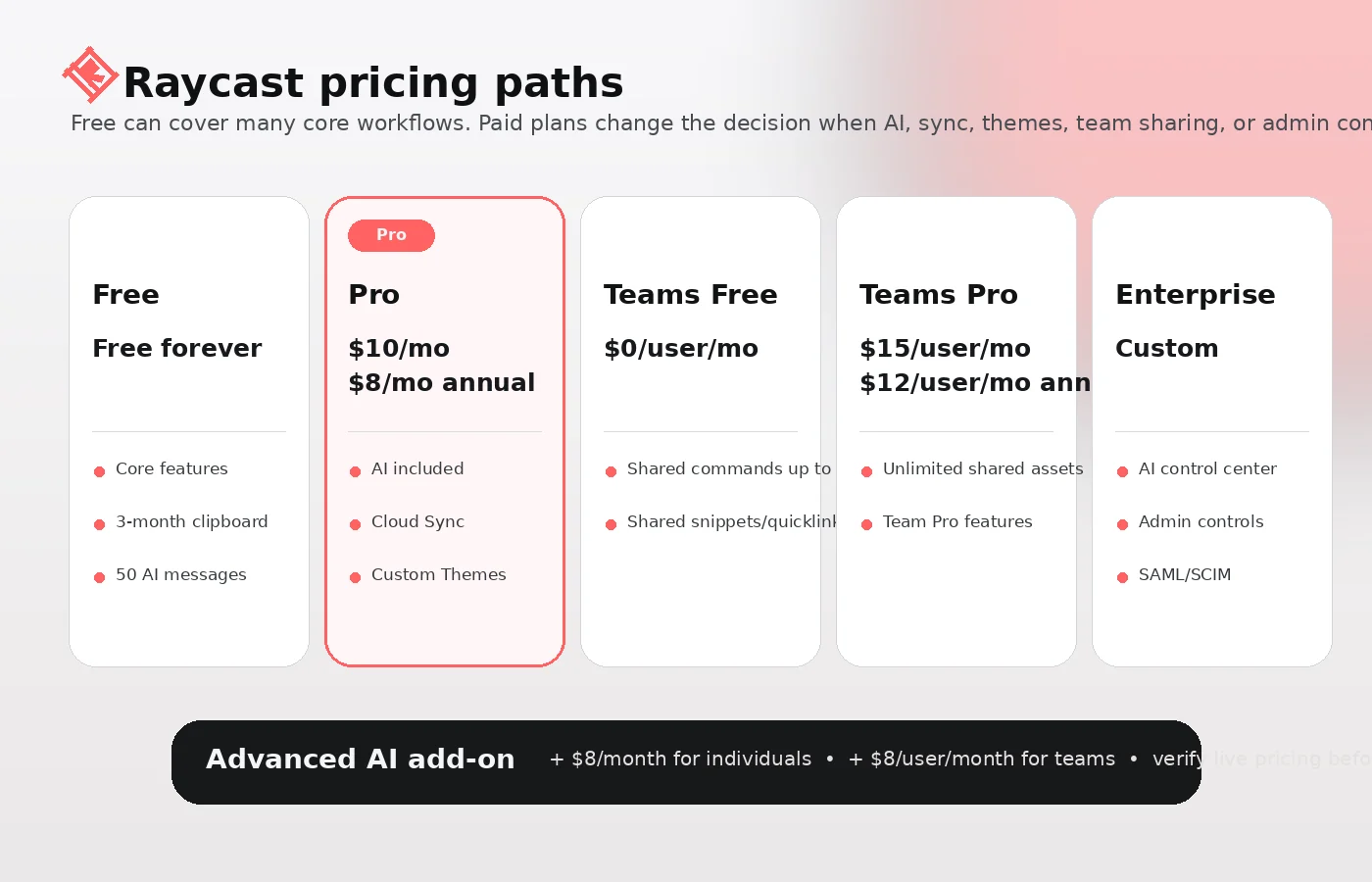
Pricing check: Compare the free plan, Pro features, Advanced AI add-on, and team needs before choosing monthly or annual billing.
Free plan, trial, coupon, and checkout notes
Raycast’s free plan is the first savings path. That is more useful than hunting for a public coupon too early.
The free plan gives buyers enough room to test the core question: does Raycast become part of daily work? If the answer is no, a coupon will not fix the mismatch. If the answer is yes, Pro pricing becomes easier to evaluate because you know which limits are actually getting in the way.
Raycast also presents a Pro trial path for additional paid features. Use that trial only after the free workflow has shown promise. A trial is most useful when you already know what you are testing: Cloud Sync, AI in the launcher, unlimited notes, unlimited clipboard history, custom window commands, translation, or themes.
For coupons, I would be conservative. A reliable public coupon code is not the main Raycast buying route. The better path is free plan first, plan comparison second, annual billing only after repeated value, and active offer checks last.
If you use the Raycast coupon page, use it as a checkout verification route rather than the reason to buy. Raycast is a workflow tool. The product either belongs in your operating rhythm or it does not.
What I would check before buying Raycast
If I were buying Raycast for a real workflow, I would check seven things before paying:
- Free plan fit: Does the free plan already cover the launcher, snippets, quicklinks, extensions, clipboard, notes, and lightweight AI use you need?
- Daily repetition: Which specific actions will you use through Raycast every day, not just during setup?
- Pro trigger: Are Cloud Sync, Raycast AI, unlimited notes, unlimited clipboard, custom themes, translation, or window commands actually worth paying for?
- Advanced AI cost: Do you need the Advanced AI add-on, or is base Pro enough for your usage?
- Platform fit: Are you mainly on macOS, or are you relying on Windows beta, iOS companion behavior, or cross-platform parity?
- Team rollout: If buying for a team, do shared commands, snippets, quicklinks, private extensions, and admin controls solve a real shared problem?
- Billing and terms: Before annual billing, check current cancellation, refund, region-specific terms, and live checkout details.
A simple test before paying
Before paying, I would run a small test like this:
- Install Raycast and use it as your launcher for several real workdays.
- Create three Quicklinks for routes you open repeatedly.
- Create three snippets for text you type often.
- Install only the extensions tied to tools you already use.
- Use Raycast for window actions, clipboard history, notes, or file search where relevant.
- Try AI from the command palette only in a workflow where it saves context switching.
- At the end of the test, list which Pro-only limits you actually hit.
This test is intentionally narrow. Raycast can do a lot, but a buyer does not need to prove every feature. The real question is whether the app becomes muscle memory.
If the answer is yes, Pro deserves a closer look. If the answer is no, the free plan may be enough or Raycast may not be the right productivity layer for you.
Pros explained
The first real pro is the free tier. Raycast gives enough away that buyers can evaluate the core product honestly. That is important because the product depends heavily on habit fit. A thin free tier would force buyers to guess. Raycast lets most users test the launcher, snippets, quicklinks, extensions, and basic workflow before deciding.
The second pro is workflow compression. Raycast can replace several small actions and utilities when used well. App launching, links, snippets, clipboard, commands, windows, notes, and AI do not sound dramatic separately. Combined into one keyboard-first layer, they can reduce daily switching.
The third pro is technical flexibility. Developers and operators can do more with Raycast than with a simple launcher because extensions and developer tooling can connect the product to real workflows. This is where Raycast feels less like a utility and more like a personal command surface.
The fourth pro is the team angle. Shared commands, snippets, quicklinks, and private extensions can be genuinely useful when a team has repeatable internal work. This is more specific than generic collaboration software. Raycast is strongest when the shared workflow is small, frequent, and action-oriented.
The fifth pro is the AI placement. Raycast AI is not necessarily better than dedicated AI apps at every task, but the placement inside the launcher is convenient. If AI is needed during small desktop moments, that convenience can be the value.
Cons explained
The first con is the learning curve. Raycast is not hard in the way enterprise software is hard, but it can be overwhelming because it does many small things. Some buyers will install it, admire it, and still not know what to do next. That is a real mismatch for users who prefer simple tools.
The second con is that Pro may not be necessary. This is a strange downside, but it matters commercially. The free plan is strong enough that some users may struggle to justify paying. That is good for buyers, but it means the paid decision needs a clear trigger.
The third con is Advanced AI cost. If the buyer thinks Raycast Pro means “all AI needs are covered,” the add-on structure deserves a closer look. AI-heavy users should calculate the full plan path, request limits, model needs, and BYOK implications before deciding.
The fourth con is platform maturity. Raycast is safest as a Mac-first workflow decision. Windows is now publicly available in beta, which is exciting, but Windows-first buyers should verify current feature parity, Pro availability, Team behavior, and extension support before committing a workflow to it.
The fifth con is team adoption risk. A power user can configure Raycast for themselves. A team needs shared habits, ownership, documentation, and onboarding. Without that, Teams Pro can become another paid system with scattered usage.
Green flags and red flags
Green flags for Raycast are easy to spot. You already use keyboard shortcuts heavily. You repeat the same links, snippets, and tool searches every day. You use several small utilities that Raycast could consolidate. You have developer or ops workflows that can become commands. Your team has internal lookups, shared snippets, or dashboards that people constantly hunt for.
Those are good buying signals.
Red flags look different. You only want a prettier app search. You dislike learning shortcuts. You work mainly inside one browser app and rarely switch tools. You want a full shared workspace, not a desktop launcher. You are buying because Pro looks affordable but cannot name the Pro feature that changes your work. You are Windows-first and assuming full macOS parity without testing the current beta.
The bigger red flag is emotional productivity buying. Raycast can make a power user faster, but it cannot turn unclear work into clear work. It removes friction around repeated actions. It does not decide which actions matter.
Raycast vs alternatives
Raycast’s alternatives need careful labeling. Some tools are direct launcher comparisons. Others are adjacent productivity routes. The buyer should not compare them as if they solve the same job.
Taskade vs Raycast
Taskade is the stronger comparison if the buyer wants a shared workspace with tasks, docs, AI agents, and collaborative planning. It is not a direct launcher replacement. It solves a different problem: organizing work and collaboration rather than speeding up desktop commands.
Raycast still makes more sense if the buyer’s pain is repeated desktop friction, not team planning.
Monica vs Raycast
Monica is closer for buyers who want browser-based AI help around reading, writing, summarizing, and web activity. If your main problem is “I want an AI assistant while browsing,” Monica may feel more direct.
Raycast is better when the AI assistant is only one part of a broader desktop command workflow.
Sider vs Raycast
Sider is another adjacent browser-AI route. It can be a cleaner fit for users who want AI support around web pages and writing without changing their operating-system workflow.
Raycast is the better fit when quicklinks, snippets, launcher actions, windows, extensions, and keyboard commands matter as much as AI.
Blitzit vs Raycast
Blitzit is more relevant if the buyer’s real issue is focus, task execution, and getting through work blocks. It is not trying to be a full command palette.
Raycast can support focus indirectly by reducing friction, but it is not the same buying job. Choose Blitzit if execution structure is the main problem. Choose Raycast if repeated desktop actions are the bottleneck.
Alfred, Spotlight, and platform-native utilities
For many users, the most direct comparison is still Alfred, Spotlight, PowerToys, or built-in operating-system features. These tools may be enough if the buyer only needs app launching, simple search, or a one-time paid utility.
Raycast’s advantage is the combined layer: launcher, extensions, snippets, quicklinks, notes, AI, and team workflows. If you do not need the combined layer, simpler tools may be the smarter route.
Trust, refund, and buyer-risk notes
The main trust question with Raycast is not whether the product is real or polished. It clearly is. The buyer-risk question is whether the subscription path matches the way you will actually work.
Pricing should be verified at live checkout. Plan tables can change, AI limits can change, and add-on logic can affect the real cost. The base Pro price is only one part of the decision if you care about advanced models or heavier AI usage.
Refund and cancellation terms should be checked before annual billing. Raycast terms include region-specific consumer language and subscription terms, but buyers should not treat that as a universal no-questions refund promise for every country, plan, or situation. If refund flexibility matters, read the current terms before committing.
Data and privacy deserve a separate check if you plan to use AI, Cloud Sync, or team features. Raycast’s public AI privacy documentation describes AI as user-triggered rather than background monitoring, and it gives buyers ways to think about Cloud Sync, AI providers, and BYOK. That is useful, but teams with strict data policies should still review the privacy policy, DPA, security materials, and provider implications before rolling out.
Windows buyers should verify the current beta state. The public Windows page presents a growing beta experience, but platform parity, Pro behavior, Team features, and extension support should be tested in the actual workflow.
For teams, the risk is not just billing. It is governance and adoption. Who manages private extensions? Who approves shared snippets? Who removes stale quicklinks? Who trains new users? If nobody owns the system, the team value can decay quickly.
Final verdict
Raycast is one of those tools that looks simple from the outside and becomes more serious once you understand the workflow. As a free launcher, it is easy to recommend testing. As a paid productivity layer, it needs a sharper buyer case.
I would consider Raycast if you already repeat desktop actions all day and want a keyboard-first command layer to reduce friction. I would strongly consider it if you are a Mac power user, developer, operator, or team member who can turn repeated links, snippets, tool searches, internal actions, and AI prompts into habits.
I would skip the paid plan if you only need basic app launching, if the free plan already covers your real use, or if you prefer simple single-purpose tools. I would also slow down if you are Windows-first, heavily dependent on Advanced AI, or buying for a team before testing shared workflows.
Compare Raycast with Taskade if the real need is collaborative workspace structure. Compare it with Monica or Sider if browser AI is the main job. Compare it with Blitzit if focus and execution are the real problem. Compare it with Alfred or platform-native utilities if you only want launcher speed.
The safest path is not complicated: start free, build a narrow workflow, prove daily use, then decide whether Pro removes a real limit. If Raycast becomes muscle memory, the paid plan can make sense. If it only feels impressive during setup, keep your money and use the free plan or a simpler alternative.